
EXIF Data Removal: Complete Guide to Strip Photo Metadata
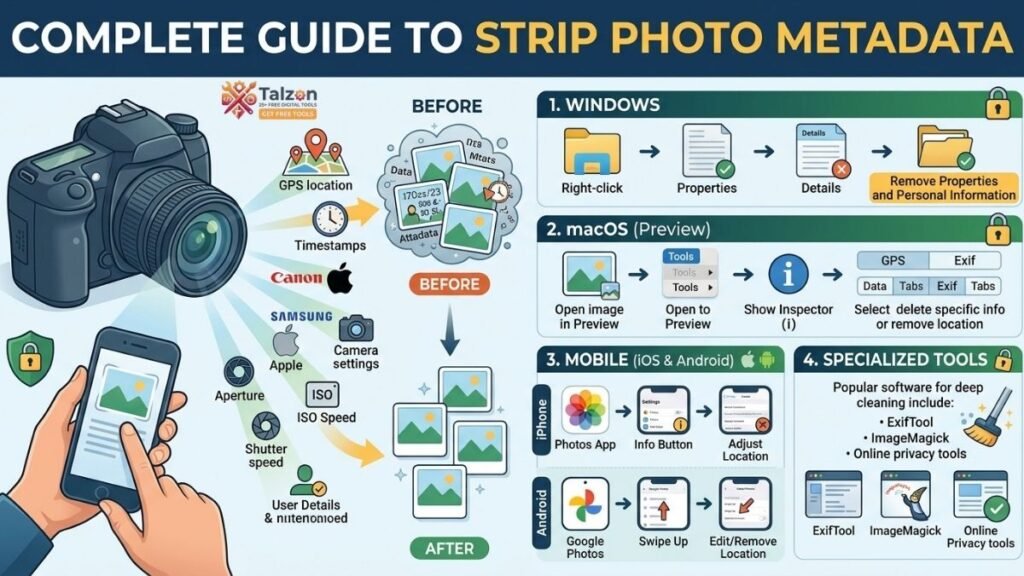
Every photo you take carries hidden information most people never see. That sunset shot from your phone or the group picture from last weekend isn’t just pixels—it’s packed with metadata called EXIF data that can reveal where you were, what device you used, and even when exactly you snapped it. If you’ve ever shared images online without thinking twice, you might have unknowingly exposed your location, daily routines, or device details to strangers, advertisers, or worse.
This guide walks you through everything you need to know about EXIF data removal—what it is, why it matters for your privacy, and exactly how to strip it from your photos on any device. Whether you’re a casual smartphone shooter, a professional photographer, or someone who just wants to share images safely, you’ll find practical, step-by-step methods that work in 2026.
What Is EXIF Data and Why Should You Care?
EXIF stands for Exchangeable Image File Format. It’s a type of metadata embedded automatically by cameras and smartphones into image files like JPEG, PNG, HEIC, and TIFF. Think of it as a digital receipt attached to every photo, recording details about how and where the image was captured.
Typical EXIF fields include:
- GPS coordinates (latitude and longitude of where the photo was taken)
- Date and time the image was captured
- Camera make and model (e.g., iPhone 15 Pro, Canon EOS R6)
- Camera settings (shutter speed, aperture, ISO, focal length)
- Device serial numbers (in some cases)
- Editing history or software used to process the image
For photographers, this data can be incredibly useful for organizing shoots, analyzing techniques, or proving authorship. But for everyday users sharing photos on social media, forums, or messaging apps, EXIF data poses real privacy risks.
The Privacy Risks Hidden in Your Photos
You might think a photo is just a photo, but the metadata inside can tell a surprisingly detailed story about your life. Here’s what can go wrong if you don’t practice EXIF data removal before sharing:
- Location leakage: GPS coordinates can pinpoint your home address, workplace, your kid’s school, or places you frequent. Stalkers, burglars, or malicious actors can use this to track your movements.
- Device fingerprinting: Camera model and serial numbers can help identify you across different platforms, making it easier to link multiple accounts or images back to one person.
- Timeline reconstruction: Timestamps show exactly when you were somewhere, which can be sensitive for journalists, activists, or anyone in a vulnerable situation.
- Thumbnail extraction: Even if you crop or edit an image, the embedded thumbnail might retain original EXIF data, including location.
- AI and tool exposure: Some metadata can reveal that you used AI tools or specific editing software, which might trigger unwanted platform labels or attention.
Major platforms like Facebook, Instagram, and Twitter automatically strip EXIF data when you upload images, but not all sites do. If you share photos via email, messaging apps, forums, cloud storage links, or personal websites, that metadata often travels with the image—unless you remove it first.
How to Remove EXIF Data on Windows
Windows 10 and 11 include a built-in tool for EXIF data removal that works well for most users. Here’s how to use it:
- Right-click the photo file in File Explorer.
- Select Properties from the context menu.
- Go to the Details tab.
- At the bottom, click Remove Properties and Personal Information.
- Choose Create a copy with all possible properties removed (this keeps your original file intact).
- Click OK.
This method removes all standard EXIF fields, including GPS, timestamps, and device info. The downside? It creates a new file, so you’ll need to manage both versions if you want to keep the original.
For Advanced Users: ExifTool on Windows
If you need more control or want to batch-process hundreds of images, ExifTool is the gold standard. It’s a free, command-line utility that works on Windows, Mac, and Linux.
- Download ExifTool from the official site (exiftool.org).
- Extract the executable and rename it to
exiftool.exe. - Place it in a folder that’s in your system’s PATH (or run it from its folder).
- Open PowerShell or Command Prompt and run:
exiftool -all= -overwrite_original filename.jpgThis strips all metadata from the file in place.
For batch processing, replace filename.jpg with *.jpg to clean an entire folder.
How to Remove EXIF Data on Mac
macOS offers a couple of options, depending on how thorough you want to be.
Using Preview (Built-in, GPS Only)
- Open the photo in Preview.
- Go to Tools > Show Inspector (or press
Cmd+I). - Click the GPS tab (if location data exists).
- Click Remove Location Info.
Note: This only removes GPS coordinates. Other EXIF fields like timestamps and camera model remain.
Using Photos App (Export Without Location)
- Open the photo in the Photos app.
- Press
Cmd+Ito open Get Info. - Click the location field and choose No Location or Revert to Original Location.
- Go to File > Export and save the image.
For Full EXIF Data Removal on Mac
To strip all metadata (not just GPS), use a third-party tool like ImageOptim (free, drag-and-drop) or ExifTool (same command as Windows).
- ImageOptim: Drag your image into the app, and it automatically removes EXIF, XMP, and other metadata while optimizing file size.
- ExifTool: Run
exiftool -all= photo.jpgin Terminal.
How to Remove EXIF Data on iPhone (iOS)
Apple doesn’t offer a one-tap EXIF data removal feature in the Photos app, but you can limit location sharing when sending images.
Using the Share Sheet (GPS Only)
- Open the photo in Photos.
- Tap the Share button.
- At the top of the share sheet, tap Options.
- Toggle Location off.
- Share the image via Mail, Messages, or another app.
This removes GPS data for that specific share but doesn’t strip other EXIF fields. You’ll need to repeat this every time you share.
Using Third-Party Apps
For full EXIF data removal, apps like Scrambled Exif (available via F-Droid for Android, but iOS equivalents include Metapho or ViewExif) let you view and strip metadata before sharing.
Disable Location for Camera (Prevent Future EXIF)
- Go to Settings > Privacy & Security > Location Services.
- Find Camera and set it to Never.
This stops your iPhone from embedding GPS coordinates in new photos, but existing photos will still have location data.
How to Remove EXIF Data on Android
Android phones vary by manufacturer, but most offer similar options.
Using Google Photos (GPS Only)
- Open the photo in Google Photos.
- Tap the Share button.
- Tap Remove location at the top of the share sheet (appears only if location data exists).
- Send the image.
Using Samsung Gallery (Built-in Toggle)
Some Samsung devices let you toggle EXIF removal in the Gallery app:
- Open the photo in Gallery.
- Tap the three-dot menu.
- Look for Remove location data or similar.
Using Third-Party Apps
For full EXIF data removal, apps like Scrambled Exif (free, open-source, available on F-Droid) or Photo & Picture Resizer let you strip all metadata before sharing.
- Install the app from F-Droid or Google Play.
- Open the photo within the app.
- Choose Remove EXIF or Share without metadata.
Disable Location for Camera (Prevent Future EXIF)
- Go to Settings > Apps > Camera > Permissions.
- Disable Location.
Online EXIF Data Removal Tools (No Software Needed)
If you don’t want to install apps or use command-line tools, several browser-based tools let you strip EXIF data without uploading your images to a server. These process files locally in your browser, so your photos never leave your device.
- MetaClean.app: Drag and drop images to remove metadata instantly.
- FormatDrop.com: Browser-based EXIF removal with no uploads.
- ImageLean.com: Offers both online and downloadable tools.
Always verify that the tool processes files locally (look for “no upload” or “client-side processing” in the description) to avoid privacy risks.
Best Practices for EXIF Data Removal
To make EXIF data removal a seamless part of your workflow, consider these tips:
- Strip before sharing: Make it a habit to remove metadata before sending photos via email, messaging apps, or uploading to personal websites.
- Disable location for camera: Prevent future EXIF data by turning off location permissions for your camera app.
- Use batch tools for large libraries: If you have hundreds of photos to clean, ExifTool or ImageOptim can process entire folders in seconds.
- Verify removal: After stripping EXIF, right-click (or use Get Info) to confirm metadata is gone.
- Keep originals safe: If you use tools that create copies, store originals in a secure, private folder for your own reference.
When You Might Want to Keep EXIF Data
Not every situation calls for EXIF data removal. Photographers, journalists, and researchers sometimes need metadata for:
- Proving authorship: EXIF can help verify who took a photo and when.
- Organizing shoots: Timestamps and camera settings aid in cataloging and editing workflows.
- Forensic analysis: In legal or investigative contexts, metadata can be critical evidence.
If you’re sharing images for professional purposes, consider stripping only sensitive fields (like GPS) while keeping camera settings and timestamps intact. ExifTool allows selective removal with commands like exiftool -gps:all= photo.jpg to delete only location data.
Final Thoughts: Take Control of Your Photo Privacy
EXIF data removal isn’t just for tech-savvy users—it’s a simple, essential step anyone can take to protect their privacy in a world where images are shared constantly. Whether you use built-in OS tools, third-party apps, or online services, the key is to make it a habit before hitting “send” or “upload.”
Your photos tell stories, but they shouldn’t tell strangers where you live, work, or spend your time. With the methods in this guide, you can share images confidently, knowing you’ve stripped away the hidden data that could compromise your safety.
Start today: pick one photo you’ve shared recently, check its EXIF data, and try removing it using the steps above. Once you see how easy it is, you’ll wonder why you didn’t do it sooner.