
Merge PDF Offline: Secure, Private Ways to Combine Files
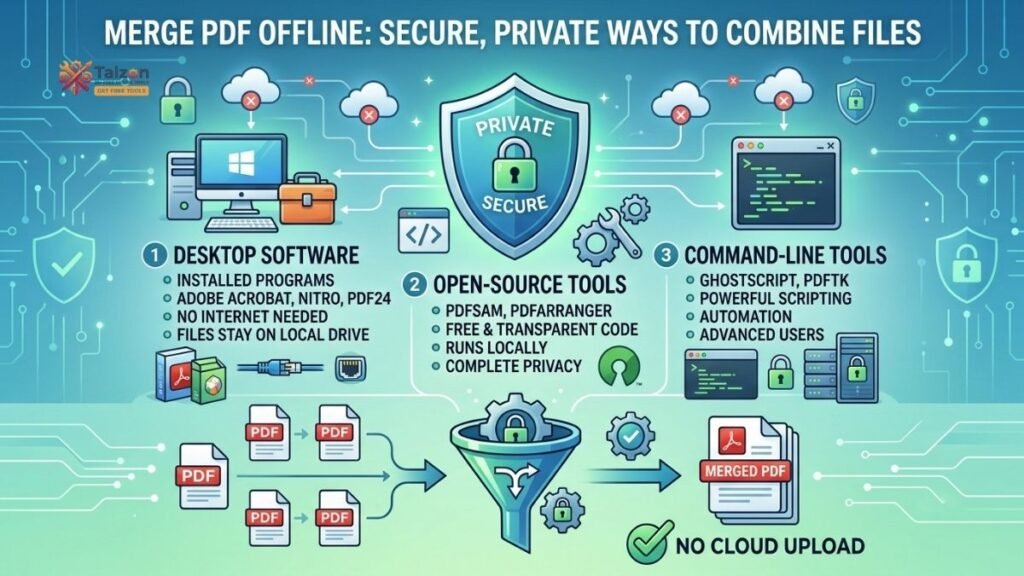
In today’s digital world, combining multiple PDF documents into one is a common task—whether you’re assembling a report, preparing a portfolio, or bundling invoices. But if your files contain sensitive information, uploading them to an online service might feel risky. Fortunately, you can merge PDF files securely and entirely offline. This guide walks you through practical, privacy-first methods to combine PDFs without sending your data to the cloud.
Why Merge PDF Files Offline?
Before diving into the “how,” it’s worth understanding the “why.” Merging PDFs offline offers several key advantages:
- Privacy: Your documents never leave your device, reducing the risk of data leaks or unauthorized access.
- Security: No third-party servers store or process your files, which is critical for legal, medical, or financial documents.
- Speed: Local processing is often faster than uploading, waiting for server-side merging, and downloading the result.
- No Internet Required: Once your tool is installed or loaded, you can work even without a connection.
For anyone handling confidential information, offline merging isn’t just convenient—it’s a best practice.
Method 1: Use Built-in Tools on Mac (Preview)
If you’re on a Mac, you already have a powerful PDF merger installed: Preview. Here’s how to use it:
- Open the first PDF in Preview (double-click the file or right-click → Open With → Preview).
- Show thumbnails: Go to View → Thumbnails (or press Option + Command + 2) to display the sidebar.
- Drag and drop: Drag additional PDF files from Finder directly into the thumbnail sidebar. Drop them where you want them to appear in the final document.
- Reorder pages: Click and drag thumbnails to rearrange pages or entire documents.
- Export: Go to File → Export as PDF, choose a name and location, and click Save.
This method is fast, free, and keeps everything on your machine. It’s ideal for quick merges without installing extra software.
Method 2: PDFsam Basic (Windows, Mac, Linux)
For cross-platform users, PDFsam Basic is a top-tier open-source tool designed specifically for splitting, merging, and rearranging PDFs. It’s free, offline, and respects your privacy.
How to Merge PDFs with PDFsam:
- Download and install PDFsam Basic from
- Launch the app and select the “Merge” module.
- Add your PDFs: Click “Add” or drag files into the window.
- Set the order: Use the up/down arrows to arrange files as needed.
- Choose output location: Specify where to save the merged file.
- Click “Run”: PDFsam combines your documents locally in seconds.
PDFsam Basic is lightweight, ad-free, and perfect for regular users who need reliable offline merging without paying for premium software.
Method 3: Microsoft Store Apps (Windows 10/11)
Windows users can find several trustworthy offline PDF mergers in the Microsoft Store. One highly rated option is Merge & Split PDF Tool, which processes files entirely on your device.
Steps to Merge PDFs on Windows:
- Install the app: Search for “Merge & Split PDF Tool” in the Microsoft Store and install it.
- Open the app and click “Add Files” or drag your PDFs into the window.
- Arrange the order: Use drag-and-drop to sequence your documents.
- Click “Merge”: The app combines your files instantly.
- Save the result: Choose a folder and filename for your merged PDF.
These apps are sandboxed, meaning they can’t access your files without permission—and they don’t upload anything to the cloud.
Method 4: Browser-Based Tools That Work Offline
Not all online PDF tools upload your files. Some modern web apps run entirely in your browser using client-side JavaScript, meaning the merging happens on your device—not on a remote server.
How It Works:
- You load the tool’s webpage once (requires internet).
- The merging logic is downloaded to your browser.
- You can then disconnect from the internet and still merge files locally.
- No data is ever sent to the server.
Recommended Tools:
- PDF Safe
- PDFLark
- Wild & Free Tools
Step-by-Step (Using PDF Safe as an Example):
- Open the merge page in your browser (e.g., pdf-safe.com/en/merge-pdf).
- Wait for the page to load fully (you’ll see the upload zone and buttons).
- (Optional) Disconnect from the internet to verify offline functionality.
- Drag and drop your PDFs into the upload area.
- Reorder files by dragging them into your preferred sequence.
- Click “Merge PDF”: The browser processes everything locally.
- Download the merged file directly to your device.
These tools are ideal if you don’t want to install software but still demand privacy. They’re free, require no account, and impose no file-size limits beyond your device’s RAM.
Method 5: Command-Line Tools for Advanced Users
Tech-savvy users or those automating workflows may prefer command-line utilities like pdftk, qpdf, or pdfunite (part of Poppler). These tools offer scriptable, batch-capable merging with zero GUI overhead.
Example Using pdfunite (Linux/macOS):
pdfunite file1.pdf file2.pdf file3.pdf merged_output.pdfExample Using pdftk (Windows/Linux/macOS):
pdftk file1.pdf file2.pdf cat output merged_output.pdfThese utilities are free, open-source, and process files entirely offline. They’re perfect for developers, system administrators, or anyone comfortable with terminal commands.
Tips for a Smooth Merging Experience
No matter which method you choose, keep these best practices in mind:
- Name files logically: Use clear filenames (e.g., “01_Cover.pdf,” “02_Report.pdf”) to simplify ordering.
- Check page order: Always preview the merged result to ensure pages appear as intended.
- Watch file size: Merging many large PDFs can create a hefty file. If needed, compress the final document using offline tools like PDF24 Creator or Ghostscript.
- Backup originals: Keep your source files unchanged in case you need to re-merge or extract pages later.
- Verify tool behavior: If using a browser-based tool, open your browser’s developer tools (F12 → Network tab) to confirm no data is being uploaded during the merge process.
Common Mistakes to Avoid
Even with the right tools, small errors can derail your workflow. Here’s what to watch out for:
- Assuming all “online” tools upload files: Many modern web apps run client-side only. Check their privacy policy or test offline to confirm.
- Ignoring file order: The sequence you add files usually determines the final order. Rearrange before merging, not after.
- Overlooking page ranges: Some tools let you select specific pages from each PDF. Use this to exclude unnecessary content.
- Using untrusted software: Stick to well-reviewed, open-source, or officially distributed apps to avoid malware or hidden data collection.
When to Choose Offline vs. Online Merging
While offline merging is ideal for sensitive documents, online tools still have their place. Consider the following:
| Scenario | Recommended Approach |
|---|---|
| Confidential legal/medical docs | Offline (desktop or local browser tool) |
| Quick merge on public computer | Offline browser tool (no install) |
| Large batch processing | Command-line tools (pdftk, qpdf) |
| Casual, non-sensitive files | Reputable online mergers (if privacy isn’t a concern) |
The key is matching your method to your security needs and workflow.
Final Thoughts
Merging PDF files doesn’t have to mean sacrificing privacy. With the right tools—whether built-in apps like Preview, open-source software like PDFsam, or client-side browser tools—you can merge PDF documents securely, quickly, and entirely offline. By keeping your files on your device, you maintain full control over your data while enjoying the convenience of a single, organized document.
Next time you need to combine PDFs, skip the cloud and choose a method that puts privacy first. Your documents—and your peace of mind—will thank you.