
Best Ways to Combine PDF Files Quickly & Securely
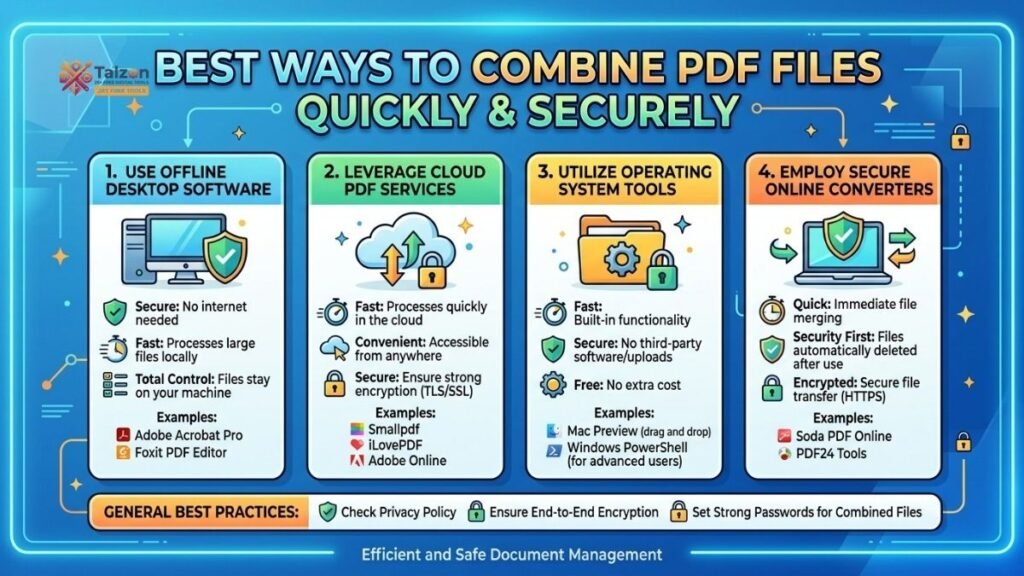
Combining PDF files doesn’t have to be complicated. Whether you’re merging invoices, study notes, or project reports, knowing how to combine PDF files efficiently can save you time and keep your documents organized. In this guide, we’ll walk through the best ways to combine PDF files using free online tools, built-in desktop features, and mobile apps—so you can choose what works best for your workflow.
Why You Might Need to Combine PDF Files
Before diving into the tools, it’s worth understanding why combining PDF files is such a common task. People merge PDFs for all kinds of reasons:
- Creating a single file from multiple scanned documents
- Bundling chapters of a report or eBook
- Submitting a complete application with several attachments
- Archiving related documents in one place
Whatever your reason, the goal is the same: a clean, single PDF that’s easy to share, store, and open on any device.
Method 1: Free Online PDF Mergers (No Installation Required)
For most users, the fastest way to combine PDF files is with a free online tool. These browser-based mergers work on Windows, Mac, Linux, and even Chromebooks—no software installation needed.
How It Works
- Upload your files: Drag and drop your PDFs into the tool’s upload area, or click to browse and select them from your device.
- Arrange the order: Most tools let you drag thumbnails to reorder files so they appear in the correct sequence in the final document.
- Merge and download: Click the “Merge PDF” or “Combine” button, wait a few seconds, then download your new, combined file.
Popular Free Tools
Several trusted platforms offer free PDF merging with no signup or watermarks:
- PDFWix: Allows up to 20 files, processes entirely in your browser using WebAssembly for privacy.
- iLovePDF: Offers both online and local (no-upload) merging options, with GDPR-compliant processing.
- DocHub Merge: Lets you append additional PDFs and drag pages across files for precise control.
- PublicSoftTools: Fully browser-based with no server upload—files stay on your device.
- WPS PDF Merger: Supports saving directly to Dropbox or downloading locally.
When to Use Online Mergers
Online tools are ideal when you need speed, simplicity, and cross-device access. They’re perfect for occasional use, small to medium-sized files, and situations where you don’t want to install software. Just be mindful of sensitive documents—opt for tools that process files locally in your browser if privacy is a concern.
Method 2: Built-in Desktop Tools (Mac & Windows)
If you prefer not to upload files to the web, both Mac and Windows offer built-in ways to combine PDF files without third-party software.
On Mac: Preview and Finder Quick Actions
macOS makes it easy to combine PDF files using Preview or Finder:
Using Preview:
- Open the first PDF in Preview.
- Go to View > Thumbnails to show the sidebar.
- Drag additional PDFs from Finder into the thumbnail sidebar.
- Drop them where you want them in the page order.
- Save the file (File > Save).
Using Finder Quick Actions:
- Select multiple PDFs in Finder.
- Right-click (or Control-click) the selection.
- Choose Quick Actions > Create PDF.
- macOS instantly creates a single merged PDF.
On Windows: PDFsam Basic and PDF24 Creator
Windows doesn’t have a native PDF merger, but free, trusted apps fill the gap:
- PDFsam Basic: Open the app, choose “Merge,” drag in your PDFs, arrange them, and click “Run” to create the combined file.
- PDF24 Creator: Drag files into the workspace, click the “Join” icon, and save the result. It’s lightweight and fully offline.
These tools are great for users who handle sensitive documents or prefer working entirely offline.
Method 3: Adobe Acrobat (Online and Desktop)
Adobe Acrobat remains the gold standard for PDF editing, and it offers robust merging capabilities.
Acrobat Online
- Visit Adobe’s Merge PDF tool.
- Upload or drag in your files.
- Arrange them in order.
- Click “Merge files,” then download or share the result.
Note: Some features may require signing in or a subscription, depending on file size and usage.
Acrobat Desktop
If you have Acrobat Pro installed:
- Open Acrobat and choose File > Create > Combine Files into a Single PDF.
- Add your files, reorder as needed, and click Combine.
Acrobat is ideal for power users who need advanced options like bookmarks, headers, or batch processing.
Method 4: Mobile Apps for On-the-Go Merging
Need to combine PDF files from your phone or tablet? Mobile apps make it possible to merge documents anywhere.
iOS and Android Options
- Xodo (iOS/Android): Open the app, go to Toolbox > Manage PDF > Merge Pages, select your files, reorder by long-pressing and dragging, then tap Merge.
- Adobe Acrobat Reader (Mobile): Offers file combining in the premium version, with cloud sync for easy access.
- Smallpdf Mobile: Provides a simple interface for merging, with optional desktop sync.
Mobile merging is perfect for students, freelancers, and professionals who need to assemble documents while traveling or away from their desk.
Tips for a Smooth PDF Merging Experience
No matter which method you choose, a few best practices can help you combine PDF files more effectively:
- Check file order before merging: Most tools let you preview and rearrange—take advantage of this to avoid re-doing the merge.
- Watch file sizes: Very large PDFs may slow down online tools or hit upload limits. For big jobs, desktop apps are often more reliable.
- Use local processing for sensitive data: If your documents contain personal or confidential information, choose tools that process files in your browser or offline.
- Name your output file clearly: After merging, save the file with a descriptive name (e.g., “Project_Proposal_Complete.pdf”) to keep your files organized.
Common Mistakes to Avoid
Even simple tasks can go wrong if you’re not careful. Here are a few pitfalls to watch out for when you combine PDF files:
- Skipping the preview: Always double-check the page order before finalizing the merge.
- Ignoring file limits: Some free tools cap the number of files or total size—check the limits before starting.
- Forgetting to save: After merging online, don’t close the tab until you’ve downloaded the file.
- Using untrusted sites: Stick to well-known, reputable tools to avoid malware or data leaks.
Choosing the Right Method for You
With so many options, how do you decide the best way to combine PDF files? Here’s a quick guide:
- Need speed and simplicity? Use a free online merger like PDFWix or iLovePDF.
- Working with sensitive documents? Choose a local or offline tool like PublicSoftTools, PDFsam, or Mac’s Preview.
- On a Mac? Use built-in Preview or Finder Quick Actions—no extra software needed.
- On Windows? Try PDFsam Basic or PDF24 Creator for reliable, offline merging.
- On mobile? Xodo or Adobe Acrobat Reader let you merge files from your phone or tablet.
Final Thoughts
Knowing how to combine PDF files is a practical skill that pays off again and again. Whether you’re a student assembling notes, a professional bundling reports, or just someone trying to keep digital paperwork tidy, the right tool can make the process quick and painless. From free online mergers to built-in desktop features and mobile apps, there’s a method that fits every need and device.
Next time you find yourself with multiple PDFs that need to become one, you’ll know exactly where to turn. Pick the approach that matches your situation, follow the steps, and you’ll have a clean, combined PDF in seconds