
How to Clean Messy Text in Seconds with a Text Cleaner
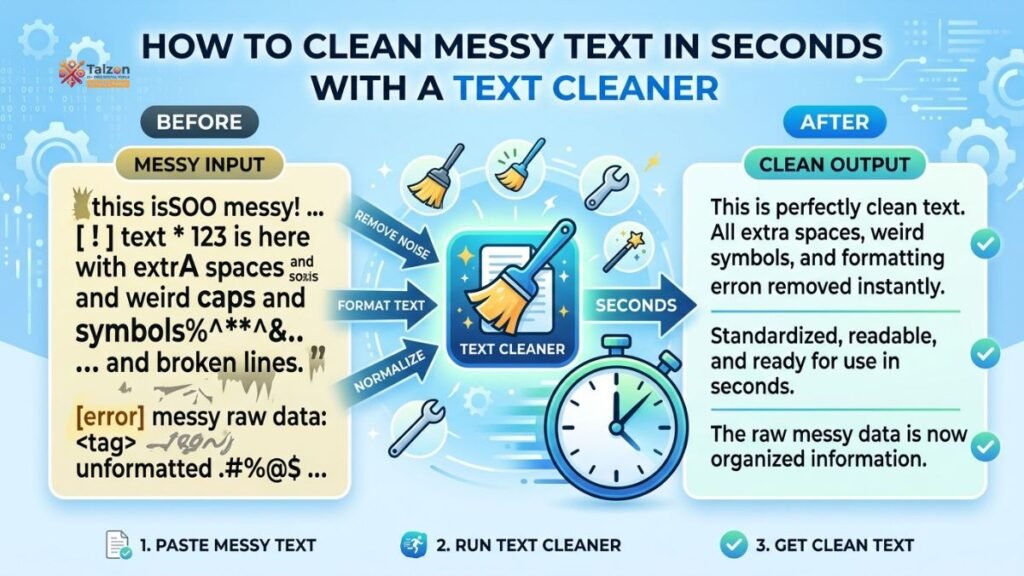
Messy text wastes time and breaks formatting across emails, documents, and web forms. A text cleaner fixes spacing, line breaks, hidden characters, and unwanted symbols in seconds so your content looks professional everywhere.
Why Messy Text Happens (and Why It Matters)
You’ve probably copied text from a PDF, email, or AI tool only to find broken lines, double spaces, or strange symbols. This happens because different sources use different formatting rules. PDFs often insert hard line breaks mid-sentence. Emails carry hidden HTML tags. AI outputs can include markdown, extra newlines, or repetitive phrases.
When you paste that text into a resume, blog post, or client email without cleaning it, you risk:
- Poor readability and awkward line breaks
- Formatting errors in word processors or CMS platforms
- Unprofessional appearance that hurts credibility
- Wasted time manually deleting spaces and symbols
A text cleaner removes these issues automatically, saving you minutes (or hours) of manual editing.
What Is a Text Cleaner?
A text cleaner is a free online tool that normalizes and fixes messy text by removing unwanted characters, extra spaces, line breaks, HTML tags, and invisible Unicode symbols. Most work directly in your browser with no signup required.
Typical features include:
- Remove extra spaces: Collapses multiple spaces into one and trims leading/trailing whitespace.
- Fix line breaks: Joins broken lines from PDFs or removes unwanted newlines.
- Strip HTML tags: Deletes
<p>,<br>,<span>, and other markup. - Remove hidden characters: Clears invisible Unicode, non-breaking spaces, and special symbols.
- Delete duplicate lines: Eliminates repeated sentences or bullet points.
- Normalize quotes and dashes: Converts curly quotes to straight quotes and em-dashes to hyphens for consistency.
Some advanced cleaners also offer presets like “PDF paste fix,” “AI text fix,” or “HTML strip” to handle common scenarios in one click.
Step-by-Step: How to Clean Messy Text in Seconds
Using a text cleaner is straightforward. Here’s how to do it in four simple steps.
Step 1: Copy Your Messy Text
Select and copy the text you want to clean from its source—whether that’s a PDF, Word document, email, webpage, or AI chatbot output.
Step 2: Paste into the Text Cleaner
Open your chosen text cleaner tool in a browser tab. Paste the copied text into the input box. Most tools accept text of any length and process it instantly.
Step 3: Choose Cleaning Options
Toggle the options you need. Common defaults include:
- Remove extra spaces
- Collapse multiple blank lines
- Trim leading/trailing whitespace
- Remove hidden Unicode characters
- Strip HTML tags (if needed)
For specific use cases, select presets like “PDF fix” (joins broken lines) or “AI fix” (removes ChatGPT phrases).
Step 4: Clean and Copy the Result
Click the “Clean Text” or “Apply” button. The cleaned output appears below, often with a summary showing how many characters were removed. Click “Copy” to grab the polished text and paste it into your document, email, or CMS.
Real-World Use Cases for a Text Cleaner
A text cleaner isn’t just for developers or writers—it’s useful for anyone who works with copied text. Here are common scenarios where it saves time.
Cleaning PDF Pasts
PDFs often insert hard line breaks at the end of each visual line, breaking sentences mid-flow. A text cleaner joins these lines and removes extra spaces, restoring natural paragraph structure.
Fixing AI-Generated Content
AI tools like ChatGPT sometimes output markdown, repeated phrases, or inconsistent spacing. A text cleaner strips markdown, removes duplicate lines, and normalizes formatting for publication-ready text.
Preparing Emails and Documents
Emails copied from Gmail or Outlook can carry hidden HTML tags and non-breaking spaces. Cleaning them ensures plain-text compatibility and consistent formatting across devices.
Optimizing Resumes and LinkedIn Posts
Resumes pasted from Word or Google Docs may include extra spaces, tabs, or special characters that break ATS parsing. A text cleaner normalizes spacing and removes hidden symbols for cleaner submission.
Web Content and Blog Drafts
Bloggers copying research from multiple sources often end up with mixed quote styles, dashes, and spacing. A text cleaner standardizes everything before publishing.
Benefits of Using a Text Cleaner
Why not just fix text manually in Word or Google Docs? Here’s why a dedicated text cleaner is better.
Speed and Efficiency
Manual editing takes minutes per document. A text cleaner does it in seconds with one click.
Consistency
Human editors miss hidden characters or inconsistent spacing. Automated tools apply the same rules every time.
Privacy
Most modern text cleaners run locally in your browser, meaning your text never leaves your device. This is critical for sensitive documents like contracts or resumes.
No Signup or Cost
The best text cleaners are free, require no account, and work instantly in any browser.
Customization
Unlike basic “find and replace,” text cleaners offer multiple options and presets tailored to different sources (PDF, AI, HTML, etc.).
Choosing the Right Text Cleaner for Your Needs
Not all text cleaners are the same. Here’s what to look for.
Browser-Based and Private
Choose tools that process text locally in your browser rather than sending it to a server. This ensures privacy and faster processing.
Flexible Options
Look for tools that let you toggle specific fixes (spaces, line breaks, HTML, etc.) rather than applying a one-size-fits-all cleanup.
Presets for Common Tasks
Presets like “PDF fix,” “AI fix,” or “HTML strip” save time by applying the right combination of options automatically.
Clear Before/After View
A good text cleaner shows the original and cleaned text side by side, plus a summary of changes made. This helps you verify the result before copying.
No Limits or Watermarks
Avoid tools that add watermarks, limit character counts, or require payment for basic features. The best options are completely free and unlimited.
Tips for Best Results
To get the most out of a text cleaner, follow these best practices.
Use the Right Preset
If your text comes from a PDF, use the “PDF fix” preset. For AI output, choose “AI fix.” This applies the most relevant rules automatically.
Run Multiple Passes if Needed
Some tools let you apply cleaning, then re-apply with different options. For example, first remove HTML tags, then fix spacing and line breaks.
Review Before Final Use
Always skim the cleaned output to ensure no important formatting (like intentional line breaks in poetry or code) was removed.
Combine with Other Tools
For advanced needs, pair a text cleaner with a case converter, duplicate line remover, or regex tool for full control over formatting.
Final Thoughts
Messy text is a universal problem—but it doesn’t have to slow you down. With a text cleaner, you can fix spacing, line breaks, hidden characters, and unwanted symbols in seconds. Whether you’re cleaning PDF pastes, AI output, emails, or resumes, the right tool saves time and ensures professional results every time.
Start using a text cleaner today and turn chaotic copy into clean, publication-ready text with just a few clicks.