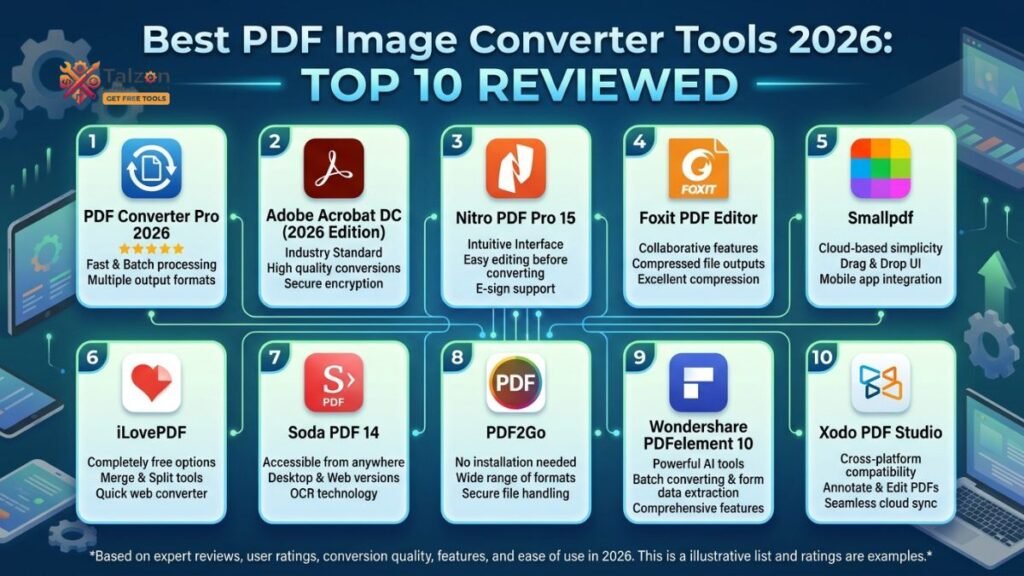
Best PDF Image Converter Tools 2026: Top 10 Reviewed
In today’s digital workflow, converting PDFs into images is a task many of us face regularly. Whether you’re extracting slides for a presentation, sharing a document snippet on social media, or archiving receipts as image files, having a reliable PDF image converter can save you time and hassle.
With countless tools flooding the market, choosing the right one can feel overwhelming. This guide walks you through the best PDF to image converter tools available in 2026, highlighting their features, pros, cons, and ideal use cases so you can make an informed decision.
Why You Need a PDF Image Converter
PDFs are great for preserving document layout, but they aren’t always ideal for every scenario. Images, on the other hand, are universally compatible, easy to share, and perfect for visual platforms.
Here’s when a PDF image converter comes in handy:
- Social media sharing: Turn PDF pages into JPGs or PNGs for Instagram, LinkedIn, or Twitter posts.
- Presentations: Extract slides or diagrams as images to embed in PowerPoint or Google Slides.
- Archiving: Save receipts, invoices, or certificates as image files for easy organization.
- Web use: Optimize PDF content for websites by converting pages into web-friendly image formats.
- Editing: Some image editors work better with JPG or PNG files than PDFs.
Top 10 PDF Image Converter Tools in 2026
Below, we’ve rounded up the best tools for converting PDFs into images, covering both free online converters and premium software options.
1. MiOffice AI
Best for: Privacy-focused users and batch conversions
MiOffice AI stands out as a top performer in 2026, thanks to its local browser-based processing via WebAssembly. This means your files never leave your device, ensuring maximum privacy and security.
Key features:
- Converts PDFs to JPG, PNG, and other formats
- Supports up to 300 DPI output for high-resolution images
- No file size limits or daily usage caps
- Batch conversion for multiple PDFs at once
- Includes 150+ additional apps for PDF and image editing
Pros:
- Fast, local processing (1–3 seconds for a 30-page document)
- No watermarks or sign-up required
- Excellent output quality with accurate colors and sharp text
Cons:
- Page selection UX slightly less polished than some competitors
Ideal for: Daily users who prioritize speed, privacy, and high-quality output without limits.
2. ILovePDF
Best for: User-friendly interface and reliable conversions
ILovePDF is a popular choice for its intuitive drag-and-drop interface and consistent performance. It supports converting PDFs to JPG, PNG, and other image formats with ease.
Key features:
- Online converter with no software installation needed
- Supports batch conversion (paid plans)
- Page range selection for extracting specific pages
- Up to 300 DPI output
Pros:
- Polished UI with easy page selection
- Good output quality with sharp text and accurate colors
- Free tier available (1 task per hour)
Cons:
- Files are uploaded to servers, which may raise privacy concerns
- Free users face hourly limits
Ideal for: Casual users who value ease of use and don’t mind cloud processing.
3. SmallPDF
Best for: Quick, straightforward conversions
SmallPDF offers a simple, no-frills approach to converting PDFs into images. It’s a solid choice for users who need occasional conversions without advanced features.
Key features:
- Converts PDF pages to JPG or PNG
- Online tool with no installation required
- Supports up to 150 DPI output
Pros:
- Fast conversion times (6–12 seconds per document)
- Clean, minimal interface
- Free tier allows 2 tasks per day
Cons:
- Lower maximum DPI compared to competitors
- Files uploaded to servers
- Limited to one document at a time on free plan
Ideal for: Occasional users who need quick, basic conversions.
4. Adobe Acrobat
Best for: Professional-grade quality and advanced features
Adobe Acrobat remains a gold standard for PDF manipulation, including converting PDFs to images. It’s ideal for professionals who need precise control over output quality and formatting.
Key features:
- High-fidelity conversions with excellent color accuracy
- Supports up to 300 DPI output
- Advanced page selection and batch conversion (paid plans)
- Integrated with Adobe’s suite of creative tools
Pros:
- Outstanding output quality
- Reliable and secure
- Extensive feature set for PDF editing and management
Cons:
- Requires a paid subscription for full functionality
- Slower processing times due to server uploads
Ideal for: Professionals and businesses needing top-tier quality and advanced PDF tools.
5. PDF24
Best for: Free, versatile PDF toolkit
PDF24 offers a comprehensive suite of free PDF tools, including a robust PDF to image converter. It’s a great option for users who want flexibility without spending money.
Key features:
- Converts PDFs to JPG, PNG, and other formats
- Configurable DPI settings
- Batch conversion support
- Page range selection
Pros:
- Completely free with no stated file size limits
- Good output quality
- Wide range of additional PDF tools
Cons:
- Files uploaded to servers
- Interface can feel cluttered due to many tools
Ideal for: Users seeking a free, all-in-one PDF toolkit.
6. Cloudinary PDF to JPG
Best for: Developers and API integrations
Cloudinary offers a seamless PDF to JPG converter designed for developers and businesses needing scalable, automated conversions.
Key features:
- High-quality PDF to JPG conversions
- API access for integration into workflows
- No loss in image clarity
Pros:
- Fast, reliable conversions
- No installation or plugins required
- Free to use
Cons:
- Primarily geared toward developers
- Limited consumer-focused features
Ideal for: Developers and tech-savvy users needing API-based solutions.
7. BoldSign PDF to Image Converter
Best for: Secure, browser-based conversions
BoldSign’s online PDF to image converter emphasizes security and ease of use, processing files directly in your browser without server uploads.
Key features:
- Converts PDF pages to JPG, PNG, or WEBP
- No sign-up, watermarks, or limitations
- 100% free and secure
Pros:
- Privacy-focused with local browser processing
- Fast and straightforward
- No restrictions on usage
Cons:
- Fewer advanced features compared to premium tools
Ideal for: Users prioritizing privacy and simplicity.
8. iReadPDF
Best for: Privacy-conscious users with diverse format needs
iReadPDF offers a free, browser-based PDF to image converter that supports multiple output formats, including JPG, PNG, and GIF.
Key features:
- Converts PDFs to JPG, PNG, or TIFF
- No registration required
- Processes files locally in the browser
Pros:
- 100% privacy with no server uploads
- Supports 50+ professional PDF tools
- Free to use
Cons:
- Limited advanced features
Ideal for: Users needing a free, privacy-focused tool with format flexibility.
9. PDNob PDF to JPG
Best for: High-quality batch conversions
PDNob provides a fast, free online PDF to JPG converter with support for batch processing and high-quality output.
Key features:
- Converts PDFs to JPG or PNG
- Batch processing supported
- No watermarks or login required
Pros:
- High-quality image output
- Fast conversion times
- Completely free
Cons:
- Limited format options compared to some tools
Ideal for: Users needing quick, high-quality batch conversions.
10. FreeConverto
Best for: All-in-one image and PDF toolkit
FreeConverto offers a suite of 28 browser-based tools, including a robust PDF to JPG converter.
Key features:
- Converts PDF pages to high-quality JPG images
- Select specific pages or convert all
- No sign-up, watermarks, or cost
Pros:
- Wide range of additional tools for images and PDFs
- Live preview and customization options
- 100% free
Cons:
- Files processed in browser may be slower for large documents
Ideal for: Users wanting a versatile, free toolkit for images and PDFs.
How to Choose the Right PDF Image Converter
With so many options available, selecting the best PDF image converter depends on your specific needs. Here are key factors to consider:
Privacy and Security
If you’re handling sensitive documents, prioritize tools that process files locally in your browser, such as MiOffice AI, BoldSign, or iReadPDF. These ensure your data never leaves your device.
Output Quality
For professional use, look for converters supporting high DPI (up to 300 DPI) and accurate color reproduction, like Adobe Acrobat or MiOffice AI.
Ease of Use
Casual users may prefer intuitive interfaces like ILovePDF or SmallPDF, which offer straightforward drag-and-drop functionality.
Batch Processing
If you frequently convert multiple PDFs, choose tools with batch conversion support, such as MiOffice AI, PDF24, or PDNob.
Cost
Many tools offer free tiers with limitations. For unlimited, high-quality conversions, consider premium options like Adobe Acrobat or MiOffice AI’s bundled apps.
Tips for Best Results When Converting PDFs to Images
To get the most out of your PDF image converter, follow these tips:
- Choose the right format: Use JPG for photos and PNG for images requiring transparency or sharp text.
- Adjust DPI settings: Higher DPI (e.g., 300) ensures better quality for print or detailed images.
- Select specific pages: Only convert the pages you need to save time and storage.
- Compress if needed: For web use, compress images to reduce file size without sacrificing too much quality.
- Check output: Always review converted images for clarity and accuracy before sharing or publishing.
Final Thoughts
Converting PDFs into images doesn’t have to be complicated. With the right PDF image converter, you can streamline your workflow, protect your privacy, and achieve high-quality results tailored to your needs.
Whether you’re a casual user needing occasional conversions or a professional requiring advanced features, the tools listed above offer reliable, efficient solutions for every scenario. Explore your options, consider your priorities, and start converting PDFs to images with confidence in 2026.