
How GPS Metadata Affects Photo Privacy: Stay Safe Online
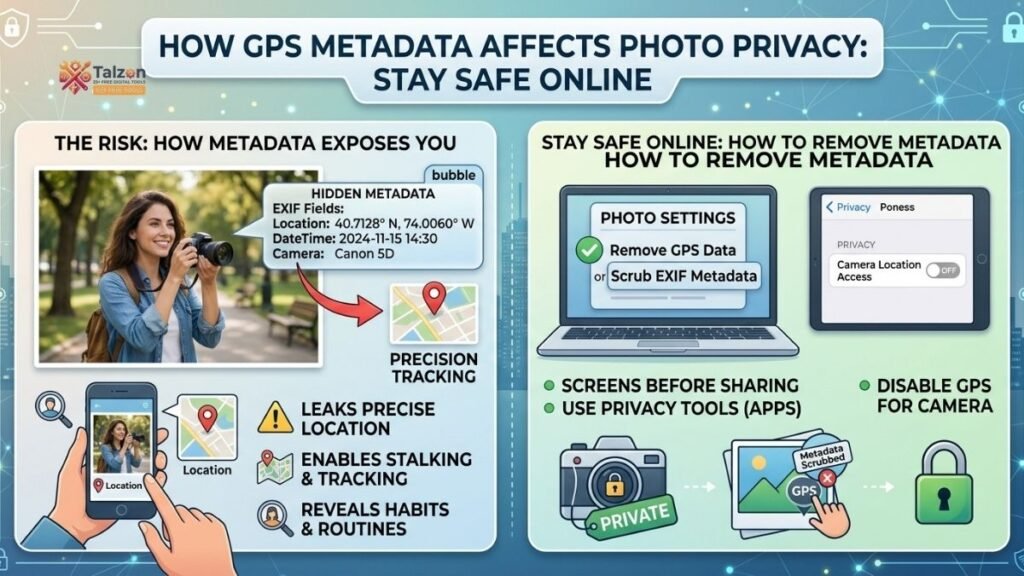
Your photos might be revealing far more than you think. Hidden inside nearly every image you take is a layer of data called metadata—and for many smartphones, that includes precise GPS coordinates. This invisible information can expose where you live, where your kids go to school, or even when you’re away on vacation. In this guide, we’ll break down how GPS metadata works, why it matters for your photo privacy, and what you can do to protect yourself without giving up the joy of sharing memories.
What Is GPS Metadata in Photos?
When you snap a picture with a modern smartphone or digital camera, your device doesn’t just save the image—it tucks away a bundle of behind-the-scenes details known as EXIF data (Exchangeable Image File Format). Among the most sensitive pieces of EXIF data are GPS coordinates: latitude, longitude, and sometimes altitude.
These coordinates can pinpoint the exact spot where a photo was taken—often within a few meters. Alongside location, EXIF may also include the date and time the photo was captured, the make and model of your device, and even unique identifiers like your camera’s serial number.
For most people, this data is harmless when photos stay on their own devices. But the moment you share an image online—via social media, messaging apps, email, or cloud storage—that metadata can travel with it, unless you’ve taken steps to remove it.
Why GPS Metadata Matters for Photo Privacy
Photo privacy isn’t just about keeping embarrassing pictures out of the public eye. It’s about controlling what personal information you unintentionally broadcast every time you share an image. GPS metadata turns an ordinary photo into a potential privacy leak. Here’s why that’s a problem.
1. It Can Reveal Your Home Address
If you take a photo inside or just outside your home and share it with GPS data intact, anyone who downloads the image can extract your exact address. This is especially risky for real estate listings, rental ads, or casual “day in my life” posts that include interior shots.
2. It Exposes Routines and Patterns
A series of geotagged photos can map out your daily habits: the gym you visit every morning, the café where you work remotely, or the school where you drop off your kids. Over time, this creates a detailed profile of your movements that could be misused by strangers, advertisers, or even malicious actors.
3. It Signals When You’re Away
Vacation photos are a classic example. Posting a geotagged image from an airport or a hotel room tells the world you’re not home. Combined with other clues (like tagged locations or check-ins), this can make your house an easy target for burglars.
4. It Puts Others at Risk
Your photo privacy choices don’t just affect you. If you share group photos, event pictures, or images of your children with location data enabled, you’re also exposing their whereabouts—often without their knowledge or consent.
5. AI Can Guess Locations Even Without GPS
Here’s the twist: even if you strip GPS metadata, new AI tools can sometimes infer where a photo was taken by analyzing visual clues like architecture, vegetation, street signs, or lighting. While this doesn’t replace the need to remove EXIF data, it’s a reminder that photo privacy is about more than just metadata—it’s about thinking critically about what your images reveal.
Real-World Scenarios Where GPS Metadata Backfires
To make this concrete, consider a few everyday situations where GPS metadata in photos has caused real privacy headaches:
- Selling a car online: A seller posts photos of their vehicle from their driveway. The EXIF data reveals their home address, leading to unwanted visitors or harassment.
- Influencer lifestyle posts: A travel blogger shares “spontaneous” photos from exotic locations. Followers use the embedded GPS data to show up unannounced, disrupting the creator’s privacy and safety.
- School event photos: A parent uploads pictures from a school play to a public album. The geotags expose the school’s location and the times events are held, creating a security concern for staff and families.
- Rental listings: A landlord shares interior photos of a rental unit. The GPS coordinates in the images reveal the exact building, allowing scammers to create fake listings using the same address.
These aren’t hypotheticals—they’re patterns that privacy experts and security researchers have documented repeatedly. The common thread? People assumed their photos were “just pictures,” not realizing they were also sharing precise location data.
How to Check If Your Photos Contain GPS Data
Before you can protect your photo privacy, you need to know what you’re working with. Here’s how to check for GPS metadata on common devices:
On iPhone
- Open the photo in the Photos app.
- Tap the info (i) button or swipe up on the image.
- If a map appears, your photo contains location data.
On Android
- Open the photo in Google Photos or your gallery app.
- Tap the three-dot menu or Details.
- Look for a map or address under the location section.
On Windows
- Right-click the photo file in File Explorer.
- Select Properties, then go to the Details tab.
- Scroll down to the GPS section to see latitude and longitude.
On Mac
- Open the photo in Preview.
- Go to Tools > Show Inspector (or press Cmd+I).
- Click the More Info tab, then expand the GPS section.
If you see coordinates, a map, or an address, your photo is geotagged—and it’s time to decide whether to remove that data before sharing.
How to Remove GPS Metadata from Photos
The good news? Stripping GPS data from your photos is easier than ever. Most devices now offer built-in options, and there are plenty of free tools if you need more control. Here’s how to do it across platforms.
iPhone: Remove Location Before Sharing
- When sharing a photo, tap Options at the top of the share sheet.
- Toggle Location off before sending. This strips GPS data from the shared copy.
iPhone: Remove Location from Stored Photos
- Open the photo, tap the info (i) button.
- Tap Adjust under the map, then select No Location.
Android: Remove Location in Google Photos
- Open the photo in Google Photos.
- Tap the three-dot menu, then Remove location.
Android: Disable Geotagging at the Source
- Open your Camera app settings.
- Turn off Location tags, Geotagging, or Save location (wording varies by brand).
Windows: Remove Properties and Personal Information
- Right-click the photo, select Properties > Details.
- Click Remove Properties and Personal Information.
- Choose Create a copy with all possible properties removed to keep your original safe.
Mac: Remove GPS in Preview
- Open the photo in Preview.
- Go to Tools > Show Inspector, then the GPS tab.
- Click Remove Location Info.
Cross-Platform: Use a Dedicated EXIF Remover
For bulk removal or extra control, free browser-based tools like EXIF Stripper, FormatDrop, or ImageMarker let you drag and drop photos to strip all metadata—including GPS—without uploading your files to a server.
Best Practices for Long-Term Photo Privacy
Removing GPS data after the fact is helpful, but the smartest approach is to prevent sensitive metadata from being created in the first place. Here are a few habits that make photo privacy second nature:
- Disable location services for your camera: On iPhone, go to Settings > Privacy & Security > Location Services > Camera and set it to Never. On Android, turn off geotagging in your camera app settings.
- Review before you share: Make it a habit to check the info panel on photos before posting them publicly, especially if they were taken at home or sensitive locations.
- Use “clean” sharing options: Many apps (like iOS Messages or WhatsApp) automatically strip metadata when you share photos. When in doubt, use these instead of email or public albums.
- Audit your cloud libraries: Services like Google Photos and iCloud may store location data even if you don’t share it. Review your privacy settings and consider disabling location history for photos.
- Educate friends and family: If you’re in group chats or family albums, remind others to remove location data too—your photo privacy is only as strong as the weakest link in your circle.
The Bigger Picture: Photo Privacy in an AI Era
As AI tools get better at guessing locations from visual clues alone, metadata removal is no longer a silver bullet—but it’s still a critical first line of defense. Think of GPS metadata as the low-hanging fruit of privacy risks: easy to remove, easy to overlook, and potentially very damaging if left in place.
By taking a few minutes to understand how GPS metadata works and adopting simple habits to manage it, you can enjoy sharing your photos without handing strangers a map to your life. Photo privacy isn’t about living in fear—it’s about making informed choices so your memories stay yours to share, on your terms.