
How to Convert JPG to PDF Easily: Fast, Free & Secure
Converting images to PDF doesn’t have to be complicated. With the right tools and a few clicks, you can turn any JPG photo into a clean, shareable PDF document in seconds.
Whether you’re scanning receipts, creating a photo portfolio, or submitting documents for work or school, knowing how to convert JPG to PDF quickly is a handy skill. This guide walks you through simple, human-friendly methods using free online tools, built-in OS features, and mobile apps—no tech jargon, no watermarks, no hassle.
Why Convert JPG to PDF?
Before diving into the how-to, it’s worth understanding why PDFs are often preferred over raw image files:
- Universal compatibility: PDFs open consistently across devices and operating systems.
- Professional presentation: Multiple images become a single, orderly document.
- Easy sharing and printing: PDFs preserve layout and quality, ideal for emails and print jobs.
- Security and control: You can password-protect or restrict editing in many PDF tools.
In short, converting JPG to PDF makes your images more usable, portable, and professional.
Method 1: Use a Free Online JPG to PDF Converter (Fastest)
Online converters are the quickest way to turn images into PDFs. They work in your browser, require no installation, and often support batch conversion.
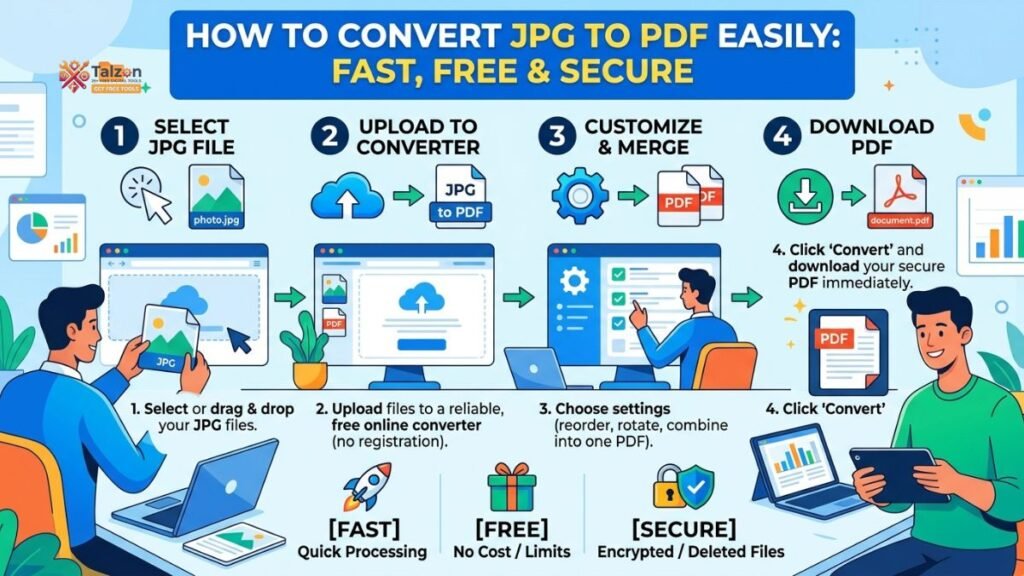
Step-by-Step: Convert JPG to PDF Online
- Choose a trusted tool
Popular, free options include iLovePDF, JPGtoPDF, Clacify, and Adobe Acrobat Online. - Upload your JPG files
Click “Upload” or drag and drop your images into the tool. Most services let you add multiple files at once. - Arrange the order
Drag thumbnails to reorder pages. This matters if you’re compiling a multi-page document like a report or portfolio. - Adjust settings (optional)
Some tools let you set page size (A4, Letter), orientation (portrait/landscape), and margins. - Convert and download
Hit “Convert” or “Generate PDF,” then download your new PDF file. No sign-up or watermark is needed on many platforms.
Pros and Cons of Online Converters
Pros:
- No software to install
- Works on any device with a browser
- Often free, fast, and watermark-free
Cons:
- Requires internet connection
- Privacy concerns with sensitive documents (check the tool’s policy)
For most everyday tasks—like combining travel photos or converting scanned notes—online JPG to PDF tools are ideal.
Method 2: Convert JPG to PDF on Windows (No Extra Software)
Windows users can create PDFs from images using built-in features—no third-party apps needed.
Using the Print to PDF Feature
- Select your JPG files
In File Explorer, holdCtrland click to select multiple images. - Right-click and choose “Print”
This opens the Windows Photos print dialog. - Select “Microsoft Print to PDF” as the printer
Choose your paper size and layout (full page, fit to frame, etc.). - Click “Print” and save
Instead of printing, Windows prompts you to save a new PDF file. Choose a location and filename.
This method is great for quick, offline conversions. However, it offers limited control over page order and margins compared to dedicated tools.
Using Microsoft Word (for More Control)
- Open Word and insert your JPG images (
Insert > Pictures). - Arrange and resize as needed.
- Go to
File > Save Asand choose PDF as the file type.
Word gives you more layout flexibility, especially for documents with text and images.
Method 3: Convert JPG to PDF on Mac (Preview App)
macOS includes a powerful, built-in tool called Preview that makes JPG to PDF conversion effortless.
Steps to Convert on Mac
- Open your JPG in Preview
Double-click the image, or right-click and choose “Open With > Preview.” - Export as PDF
Go toFile > Export as PDF, choose a location, and save. - Combine multiple images (optional)
- Open all JPGs in Preview.
- In the sidebar, drag thumbnails to reorder.
- Select all (
Cmd + A), then go toFile > Print > Save as PDF.
Preview is fast, free, and keeps your files local—perfect for privacy-conscious users.
Method 4: Convert JPG to PDF on Mobile (iPhone & Android)
Need to convert on the go? Your smartphone can handle JPG to PDF tasks with ease.
On iPhone (Using Files or Notes)
Option A: Files App
- Save your JPGs to the Files app.
- Select multiple images, tap the Share icon, and choose “Create PDF.”
- Save or share the new PDF.
Option B: Notes App
- Open Notes and create a new note.
- Tap the camera icon and choose “Scan Documents” or insert photos.
- Tap the Share icon and select “Save as PDF.”
On Android (Using Google Drive or Photos)
Option A: Google Drive
- Open the Drive app and tap the “+” button.
- Choose “Scan” to capture or upload JPGs.
- After scanning, tap the three-dot menu and select “Save as PDF.”
Option B: Third-Party Apps
Apps like Adobe Scan, CamScanner, or iLovePDF offer robust JPG to PDF features with editing and cloud sync.
Mobile conversion is ideal for receipts, forms, and quick document scans.
Tips for High-Quality JPG to PDF Conversion
To ensure your PDFs look sharp and professional, keep these tips in mind:
- Use high-resolution images: Blurry JPGs become blurry PDFs. Start with clear, well-lit photos.
- Check orientation: Rotate images before converting to avoid sideways pages.
- Mind the file size: Large PDFs can be hard to email. Some tools offer compression options.
- Test before sharing: Open the PDF on another device to confirm layout and readability.
Security and Privacy: What to Watch For
When using online JPG to PDF converters, especially for sensitive documents:
- Read the privacy policy: Ensure files are deleted after conversion (many tools auto-delete within hours).
- Prefer client-side tools: Some converters process files in your browser without uploading to servers.
- Avoid public Wi-Fi: For confidential files, use secure networks or offline methods.
For highly sensitive data (IDs, contracts, financial records), built-in OS tools or trusted desktop software are safer bets.
Common Use Cases for JPG to PDF
Understanding when to convert can help you work smarter:
- Scanned documents: Turn photos of receipts, invoices, or forms into tidy PDFs for record-keeping.
- Photo portfolios: Combine travel or event photos into a single, presentable file.
- Academic submissions: Many schools and employers require PDFs for assignments or applications.
- Printing: PDFs ensure consistent layout when printing at home or a shop.
Troubleshooting: What If Conversion Fails?
Occasionally, things don’t go as planned. Here’s how to fix common issues:
- File won’t upload: Check your internet connection and file size limits.
- Images appear cropped: Adjust page size or fit settings in your converter.
- PDF is too large: Use a compression tool or reduce image resolution before converting.
- Order is wrong: Reorder thumbnails before finalizing the PDF.
Most tools offer help sections or FAQs for additional support.
Final Thoughts: Make JPG to PDF Part of Your Workflow
Converting JPG to PDF is a simple yet powerful skill that saves time and boosts professionalism. Whether you choose a free online tool, built-in OS features, or a mobile app, the process is straightforward and accessible to everyone.
Next time you’re faced with a stack of images or scanned docs, remember: a few clicks can turn them into a polished, shareable PDF. Try one of the methods above today and streamline your digital workflow.