
How to Reorder PDF Pages Efficiently: Organize PDF Fast
We’ve all been there: you download a report, scan a contract, or export a presentation, and the pages are out of order. Maybe page 5 comes before page 2, or the appendix is stuck in the middle. It’s frustrating, unprofessional, and wastes time. The good news? You don’t need to be a tech wizard to fix it. With the right tools and a few simple steps, you can reorder PDF pages efficiently and organize PDF documents in minutes — whether you’re on Windows, Mac, or even your phone.
In this guide, we’ll walk you through everything you need to know: from free online tools to desktop software, keyboard shortcuts to pro tips. No fluff, no jargon — just clear, human-friendly advice to help you get your PDFs in order, fast.
Why Reordering PDF Pages Matters (More Than You Think)
Before we dive into the “how,” let’s talk about the “why.” Reordering PDF pages isn’t just about aesthetics. It’s about clarity, professionalism, and efficiency.
Imagine sending a client a proposal where the pricing page comes before the introduction. Or submitting a thesis with chapters out of sequence. It confuses readers, undermines credibility, and can even cause legal or compliance issues in formal documents.
Organizing PDF pages properly ensures:
- Logical flow — Readers follow your content without getting lost.
- Professional presentation — Clean, ordered documents look polished and trustworthy.
- Time savings — No more scrolling back and forth to find what you need.
- Better collaboration — Team members can reference pages accurately.
Plus, when you organize PDF files thoughtfully, you make future editing, sharing, and archiving much easier. It’s a small effort with big rewards.
Method 1: Use Free Online PDF Organizers (No Install Needed)
If you need to reorder PDF pages quickly and don’t want to install software, free online tools are your best friend. They work right in your browser, require no sign-up, and often support drag-and-drop reordering.
Top Free Online Tools to Organize PDF Pages
Here are some reliable, privacy-focused options:
- PDFWix — Upload, drag thumbnails to reorder, rotate, or delete pages. All processing happens locally in your browser using WebAssembly, so your file never leaves your device.
- BoldSign PDF Organizer — Secure, no watermark, no sign-up. Rearrange, sort, and rotate pages in seconds.
- PDNob — Batch process up to 10 files at once (15MB each). Great for light bulk work.
- PDFShed — Clean interface, drag-and-drop reordering, duplicate or delete pages as needed.
- UseToolSuite — Visual thumbnails, live preview, 100% browser-based with no uploads.
Step-by-Step: How to Reorder PDF Pages Online
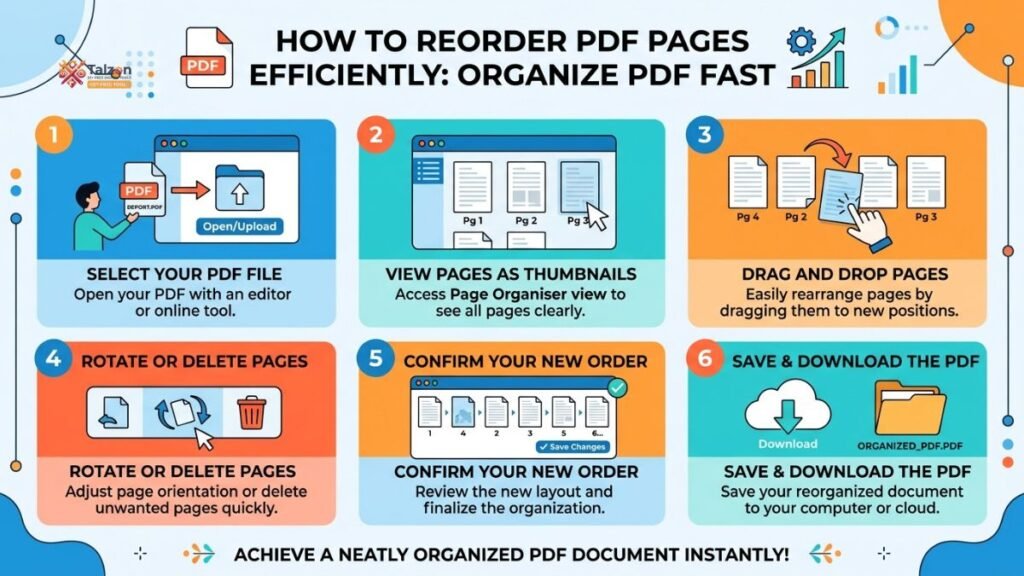
- Upload your PDF — Drag and drop or click to select your file.
- View thumbnails — Most tools show all pages as small previews.
- Drag and drop — Click and hold a page thumbnail, then drag it to its new position. A blue line or highlight usually shows where it will land.
- Rotate or delete if needed — Many tools let you fix orientation or remove blank/unwanted pages.
- Preview and download — Double-check the order, then save your newly organized PDF.
Pro tip: If you’re working with sensitive documents, choose a tool that processes files locally (like PDFWix or PDFShed) to ensure your data never touches a server.
Method 2: Desktop Software for Power Users (Adobe Acrobat & More)
For frequent PDF work or complex documents, desktop software gives you more control, better performance, and advanced features like batch processing, OCR, and metadata editing.
Adobe Acrobat Pro: The Gold Standard
Adobe Acrobat’s “Organize Pages” tool is incredibly intuitive:
- Open your PDF in Acrobat.
- Go to Tools > Organize Pages.
- Thumbnails appear in a grid. Drag any page to reorder.
- Hold Shift or Ctrl (Cmd on Mac) to select multiple pages and move them as a block.
- Rotate, delete, or insert new pages as needed.
- Save your file.
Acrobat also preserves bookmarks, links, and form fields — crucial for complex documents.
Free & Open-Source Alternatives
Not everyone wants to pay for Acrobat. Here are great free options:
- PDF Arranger (Windows/Linux) — Lightweight, open-source, and perfect for rearranging, splitting, or merging PDFs. Features an interactive grid canvas for drag-and-drop reordering.
- Preview (Mac) — Built into macOS. Open your PDF, go to View > Thumbnails, then drag pages to reorder. Simple, fast, and free.
- qpdf (Command Line) — For tech-savvy users. Reorder pages with a single command:
qpdf in.pdf --pages . 3-8,1-2,9-z -- out.pdf
This moves pages 3–8 before pages 1–2, leaving the rest unchanged.
Method 3: Mobile Apps for On-the-Go PDF Organization
Need to reorder PDF pages while commuting or traveling? Mobile apps make it possible.
iOS (iPhone/iPad)
- Files + Preview — Open the PDF in the Files app, tap to preview, then use the thumbnail sidebar to drag and reorder.
- Adobe Acrobat Reader (free) — Tap the thumbnail icon, long-press to select pages, then drag to reorder.
Android
- Xodo PDF — Clean interface, drag-and-drop reordering, annotation support.
- PDF Viewer Plus — Lightweight, fast, supports page rearrangement and rotation.
Most mobile apps sync with cloud storage (Google Drive, Dropbox, iCloud), so you can start on your phone and finish on your laptop.
Pro Tips to Organize PDF Pages Like a Human (Not a Robot)
Tools are great, but technique matters. Here’s how to reorder PDF pages efficiently without losing your mind:
1. Plan Before You Drag
Before you start moving pages, skim the document and jot down the ideal order. Maybe you need:
- Cover page
- Table of contents
- Chapters 1–5
- Appendix
- References
Having a mental (or written) map prevents endless back-and-forth dragging.
2. Use Keyboard Shortcuts
- Ctrl+Z (Cmd+Z on Mac) — Undo your last move. Experiment freely!
- Shift+Click — Select a range of pages.
- Ctrl+Click (Cmd+Click) — Select individual, non-adjacent pages.
3. Fix Orientation While You’re At It
If a page is upside-down or sideways, rotate it while reordering. Most tools let you do both in one go. Saves time and keeps your document clean.
4. Delete Blank or Duplicate Pages
Scanned documents often have blank pages or duplicates. Remove them while organizing to keep your PDF lean and professional.
5. Name Your Files Clearly
After reordering, save your file with a clear name like:ProjectProposal_v2_Organized_2026.pdf
Avoid vague names like document1.pdf — future you will thank present you.
Common Mistakes to Avoid When You Organize PDF
Even with great tools, it’s easy to slip up. Watch out for these pitfalls:
- Not previewing before saving — Always double-check the final order. One misplaced page can confuse readers.
- Ignoring file size — Reordering doesn’t usually change file size, but if you’re merging or adding high-res images, keep an eye on it.
- Forgetting to save a backup — Before making changes, save a copy of the original. Just in case.
- Using untrusted online tools — Stick to reputable, privacy-focused services. Avoid tools that require uploads for sensitive documents.
Bonus: How to Organize Multiple PDFs at Once
Got a folder full of PDFs that need reordering? Some tools support batch processing:
- PDNob — Handle up to 10 files at once (15MB each).
- Adobe Acrobat Pro — Use “Action Wizard” to apply the same reordering steps to multiple files.
- PDF Arranger — Open multiple PDFs, rearrange pages across documents, then export as one or separate files.
For large-scale projects, consider writing a simple script (using Python + PyPDF2 or qpdf) to automate reordering based on page numbers or filenames.
Final Thoughts: You’ve Got This
Reordering PDF pages doesn’t have to be a headache. Whether you choose a free online tool, desktop software, or a mobile app, the key is to pick what fits your workflow — and then just start dragging.
Remember: the goal isn’t perfection on the first try. It’s progress. Drag a page. Undo if needed. Try again. Within minutes, you’ll have a clean, logical, professional document that’s ready to share, print, or archive.
So go ahead — open that messy PDF, fire up your favorite tool, and organize PDF pages like the pro you are. Your future self (and your readers) will thank you.