
How to Split Large PDF Files Into Smaller Sections Fast
How to Split Large PDF Files Into Smaller Sections: A Practical, Human-Friendly Guide
If you’ve ever tried to email a 200-page report, upload a massive manual to a portal with a 10 MB limit, or simply navigate a bloated PDF on your phone, you know the pain. The fix? Split PDF—breaking one oversized document into smaller, manageable sections. This guide walks you through why splitting helps, the best ways to do it (free and paid), and step-by-step workflows you can follow in minutes, no tech degree required.
Why You’d Want to Split PDF Files in the First Place
Large PDFs aren’t just annoying—they create real workflow bottlenecks.
- Email and upload limits: Many email servers cap attachments at 20–25 MB, and some portals (job applications, government forms, LMS platforms) enforce even stricter limits.
- Performance: Huge files lag on older devices, drain battery, and make searching or scrolling frustrating.
- Collaboration: Sending a 300-page manual to a teammate who only needs pages 45–60 wastes their time and your bandwidth.
- Organization: Splitting by chapter, section, or topic turns a monolith into a tidy library of focused documents you can name, tag, and file logically.
In short: splitting PDFs isn’t just about file size—it’s about making your documents work for you, not against you.
Before You Split: Plan Your Sections
Don’t just start chopping pages randomly. A quick planning step saves time and prevents “Wait, which file had the budget tables again?” moments.
Decide What Each New File Should Represent
Ask yourself:
- By chapter or section? Ideal for manuals, textbooks, or reports with clear headings.
- By page ranges? Useful when you need specific chunks (e.g., “Executive Summary,” “Appendix A–C”).
- By file size? Necessary when you must meet strict upload limits (e.g., “each file under 8 MB”).
- Every N pages? Great for batch processing (e.g., “split every 25 pages” for a 200-page scan).
Sketch a Quick Map
Jot down something like:
- File 1: Pages 1–12 (Intro + Methodology)
- File 2: Pages 13–45 (Results)
- File 3: Pages 46–60 (Discussion + References)
Having this map makes the actual splitting step fast and error-free.
Method 1: Split PDF Using Free Online Tools (No Install, No Signup)
For most people, this is the fastest route. Modern browser-based splitters run locally (your file never leaves your device), support drag-and-drop, and handle everything from 10-page handouts to 1,000-page scans.
Top Free Options in 2025–2026
- PDFWix Split PDF: Split by page range, extract individual pages, or split every page into its own file. Runs in-browser with no upload.
- iReadPDF: Offers splitting by ranges, every N pages, file size, or bookmarks. Outputs individual files or a ZIP.
- SlidesCarnival Splitter: Simple interface—add split markers between pages, click Split, download.
- DocumenteSign: Type ranges like “1-3, 5, 8-10” or toggle one-file-per-page mode.
- iFillPDF: Includes AI chapter auto-detection, plus standard range/size/bookmark splits.
- ToolsMonk PDF Splitter: Visual thumbnails, multiple split modes (range, equal parts, every N pages, file size).
Step-by-Step: Splitting with a Free Online Tool
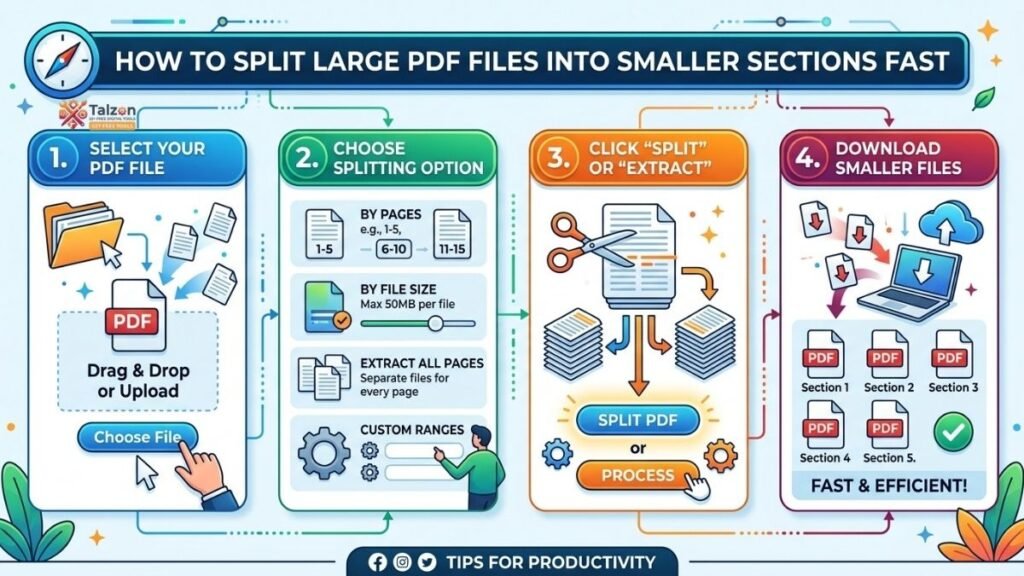
- Open your chosen splitter (e.g., PDFWix, iReadPDF).
- Upload your PDF via drag-and-drop or file browser.
- Choose your split method:
- Page ranges: Enter “1-12, 13-45, 46-60”.
- Every N pages: Enter “25” to get 25-page chunks.
- By bookmarks: Select top-level bookmarks to split at chapter headings.
- By file size: Set a max (e.g., 8 MB) if you’re hitting upload limits.
- Configure output options (if available):
- Destination folder (desktop tools) or ZIP download (online tools).
- Naming convention (e.g., “Report_Part1”, “Report_Part2”).
- Click Split and wait a few seconds.
- Download individual files or a ZIP archive.
- Rename immediately using your planning map (e.g., “01_Intro_Methodology.pdf”).
Pro tip: If your tool doesn’t support bookmarks but your PDF has a table of contents, use the “every N pages” or manual range method based on your TOC page numbers.
Method 2: Split PDF Using Desktop Software (Adobe Acrobat and Alternatives)
If you handle sensitive documents, work offline often, or need advanced control (batch splitting, custom naming rules), desktop software is worth it.
Adobe Acrobat (The Gold Standard)
Acrobat’s Organize Pages → Split tool gives you three main split modes:
- Number of pages: Every X pages becomes a new file.
- File size: Creates chunks under a specified MB limit.
- Top-level bookmarks: Splits at chapter headings if your PDF has bookmarks.
How to Split in Acrobat
- Open your PDF in Acrobat.
- Go to Tools → Organize Pages.
- Click Split in the toolbar.
- Choose Split by:
- Number of pages (e.g., 50)
- File size (e.g., 10 MB)
- Top-level bookmarks
- (Optional) Click Output options to set:
- Destination folder
- File naming pattern (e.g., “OriginalName_Part_1”)
- Click Split. Acrobat saves the new files to your chosen folder.
Batch mode: Acrobat also lets you split multiple PDFs at once—just select “Split multiple files,” add your documents, and configure settings.
Free or Low-Cost Desktop Alternatives
- PDF Studio (Windows): Right-click a PDF in Explorer → “Split into multiple PDF files.”
- WPS PDF (Desktop/Web): Drag file into the splitter area, choose pages, download split files.
- Sejda PDF Desktop: Supports automated splitting workflows and bookmark-based splits.
These tools are great if you prefer not to rely on browsers or need to process files offline.
Method 3: Split PDF on Mobile (iOS and Android)
Yes, you can split PDFs on your phone—handy for field work, travel, or quick fixes.
Recommended Apps
- Adobe Acrobat Reader (Mobile): Offers basic splitting and page extraction.
- Xodo PDF Reader & Editor: Supports page extraction and reordering.
- PDF Utils (Android): Lightweight app for splitting, merging, and compressing.
Mobile Workflow
- Open your PDF in the app.
- Look for Organize, Split, or Extract Pages.
- Select page ranges or individual pages.
- Save or share the new smaller PDFs.
Mobile tools are best for quick, one-off splits. For complex jobs (bookmarks, batch processing), stick to desktop or web.
Smart Naming and Organization After Splitting
Splitting is only half the battle. If you end up with “PDF1.pdf,” “PDF2.pdf,” and “PDF3.pdf,” you’ll forget what’s what in an hour.
Naming Best Practices
- Use descriptive prefixes: “01_Intro,” “02_Methods,” “03_Results.”
- Include version or date if relevant: “Budget_Q3_2026_Part1.”
- Avoid spaces if you’ll upload to systems that dislike them (use underscores or hyphens).
Folder Structure
Create a parent folder (e.g., “Annual_Report_2026_Split”) and drop all parts inside. If you have multiple reports, nest them:
Reports/
├─ Annual_Report_2026/
│  ├─ 01_Executive_Summary.pdf
│  ├─ 02_Financials.pdf
│  └─ 03_Appendix.pdf
└─ Q1_Update_2026/
   ├─ 01_Overview.pdf
   └─ 02_Metrics.pdf
This makes future searches and sharing trivial.
Privacy and Security: What Happens to Your File?
This is the big question with online tools.
- Browser-based (client-side) tools: Many modern splitters (PDFWix, iReadPDF, DocumenteSign, ToolsMonk) process files locally in your browser using WebAssembly—no upload, no server storage.
- Server-based tools: Some free sites upload your file to their servers. Check their privacy policy if your document contains sensitive data.
- Desktop tools: Always the safest for confidential files—everything stays on your machine
Rule of thumb: If the tool says “no upload,” “runs in your browser,” or “100% private,” it’s likely client-side. When in doubt, use desktop software or a trusted local tool.
Troubleshooting Common Split PDF Issues
“My split files are missing pages.”
- Double-check your page ranges. Remember: “1-12” includes both 1 and 12.
- If splitting by bookmarks, ensure your PDF actually has top-level bookmarks (some scanned PDFs don’t).
“The file sizes are still too big.”
- Try splitting by file size instead of page count.
- Compress images inside the PDF first (many tools offer “Compress PDF” alongside “Split PDF”).
“I need to split hundreds of files.”
- Use batch splitting in Acrobat or a desktop tool like PDF Studio.
- For free options, look for tools that support multi-file uploads (some online splitters allow this).
“My PDF has no bookmarks, but I want chapter-based splits.”
- Use your table of contents to note page numbers, then split by page ranges manually.
- Some AI-powered tools (e.g., iFillPDF) can auto-detect chapters even without bookmarks.
When to Split vs. When to Compress
Sometimes splitting isn’t the only solution.
- Split when you need logical sections, collaboration on specific parts, or to bypass page-count limits.
- Compress when the whole document must stay intact but the file size is the only issue (e.g., image-heavy PDFs).
Often, the best move is both: compress first, then split if needed.
Quick Checklist: Split PDF Like a Pro
- [ ] Plan your sections (by chapter, range, size, or N pages).
- [ ] Choose your tool (online, desktop, or mobile).
- [ ] Split using your chosen method.
- [ ] Download and rename files immediately.
- [ ] Organize into a clear folder structure.
- [ ] Verify page counts and file sizes.
- [ ] Delete the original large file (or archive it) if no longer needed.
Final Thoughts: Make Your PDFs Work for You
Splitting large PDFs isn’t just a technical trick—it’s a productivity habit. Whether you’re a student breaking a thesis into chapters, a professional sharing report sections with clients, or an admin prepping files for a portal, knowing how to split PDF efficiently saves time, reduces frustration, and keeps your digital workspace tidy.
Start with a free online tool for quick jobs, graduate to desktop software for sensitive or batch work, and always name your files so Future You says “thank you” instead of “which one was the budget again?