
Remove Extra Spaces and Formatting Errors Easily Today
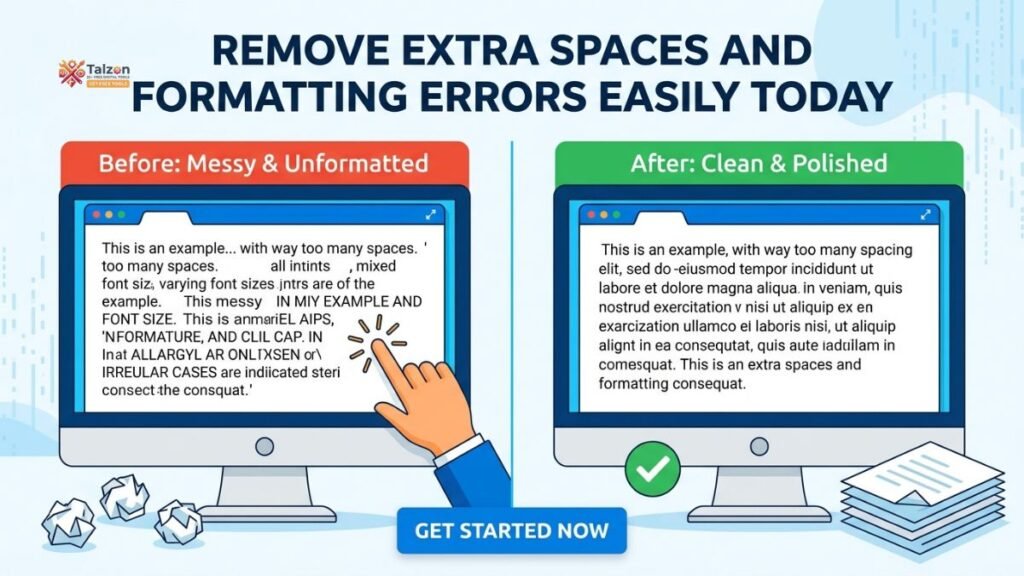
Extra spaces and broken formatting ruin documents, emails, and web content in seconds. Learning how to remove extra spaces with the right tools fixes messy text instantly and restores professional polish.
Why Extra Spaces and Formatting Errors Happen
You’ve probably copied text from a PDF, email, or website only to find double spaces, weird gaps, or broken lines. This happens because different sources use different formatting rules. PDFs often insert hard line breaks and irregular spacing. Emails carry hidden HTML tags and non-breaking spaces. Word processors add tabs and trailing whitespace that break when pasted elsewhere.
When you paste that text without cleaning it, you risk:
- Awkward gaps between words that hurt readability
- Inconsistent spacing that looks unprofessional
- Broken paragraphs from stray line breaks
- Formatting errors in resumes, blogs, or client documents
Manually fixing these issues takes time and often misses hidden characters. That’s why knowing how to remove extra spaces efficiently matters.
What Does It Mean to Remove Extra Spaces?
To remove extra spaces means to collapse multiple consecutive spaces into one, trim leading and trailing whitespace from lines, and delete tabs or non-breaking spaces that create uneven gaps. Most tools also preserve paragraph structure (newlines) while cleaning internal spacing.
Common fixes include:
- Double spaces → single space: Collapses “hello world” into “hello world”.
- Trim line edges: Removes spaces at the start or end of each line.
- Delete tabs: Converts tab characters to single spaces or removes them.
- Remove non-breaking spaces: Clears special Unicode spaces that look normal but break formatting.
- Preserve newlines: Keeps paragraph breaks intact while cleaning within lines.
Step-by-Step: How to Remove Extra Spaces Easily
Cleaning text doesn’t require technical skills. Here’s how to remove extra spaces in three simple steps using a free online tool.
Step 1: Paste Your Messy Text
Copy the text you want to clean from its source—PDF, Word doc, email, or webpage. Open a whitespace remover or “remove extra spaces” tool in your browser and paste the text into the input box. Most tools accept unlimited text and process it instantly.
Step 2: Choose Cleaning Options
Toggle the options that match your needs. For most copy-paste fixes, enable:
- Remove double spaces (collapse repeated spaces)
- Trim leading/trailing spaces
- Remove tabs
- Remove non-breaking spaces
If you also need to delete blank lines, enable that option too. For data strings or code, some tools offer a “Remove ALL” mode that strips every space and tab.
Step 3: Review and Copy the Cleaned Text
The cleaned output updates in real time as you paste or toggle options. A stats bar often shows how many spaces or characters were removed. Skim the result to ensure paragraph breaks are intact, then click “Copy” to grab the polished text and paste it into your document, email, or CMS.
Real-World Scenarios Where You Need to Remove Extra Spaces
Extra spaces aren’t just a minor annoyance—they break real workflows. Here’s where cleaning them matters most.
Fixing PDF Copy-Paste Text
PDFs often insert irregular spacing and hard line breaks. When you copy text, you get double spaces between words and broken sentences. A whitespace remover collapses spaces and joins lines for clean paragraphs.
Cleaning AI-Generated Content
AI tools sometimes output text with inconsistent spacing, repeated phrases, or markdown artifacts. Removing extra spaces normalizes the formatting before publishing or sharing.
Preparing Resumes and Job Applications
Resumes pasted from Word or Google Docs may include tabs, trailing spaces, or non-breaking spaces that confuse ATS parsers. Cleaning spacing ensures your resume parses correctly.
Web Content and Blog Drafts
Bloggers copying research from multiple sources often end up with mixed spacing and hidden characters. Removing extra spaces standardizes everything before publishing.
Emails and Client Documents
Emails copied from Gmail or Outlook can carry hidden formatting and uneven gaps. Cleaning them ensures plain-text compatibility and professional appearance across devices.
Benefits of Using a Tool to Remove Extra Spaces
Why not just use “find and replace” in Word? Here’s why a dedicated tool is better.
Speed and One-Click Cleanup
Manual find-and-replace requires multiple passes (two spaces → one, repeat). A tool does it instantly with one click.
Handles Hidden Characters
Human editors miss non-breaking spaces, tabs, or Unicode gaps. Automated tools remove all whitespace types consistently.
Preserves Paragraph Structure
Good tools collapse spaces within lines but keep newlines intact, so your paragraphs don’t merge into one block.
Privacy and No Signup
Most modern whitespace removers run locally in your browser, meaning your text never leaves your device. No account or payment required.
Real-Time Preview
You see the cleaned output instantly with stats showing how many spaces were removed, so you can verify before copying.
Manual Methods to Remove Extra Spaces (When Tools Aren’t Available)
Sometimes you can’t use an online tool. Here’s how to remove extra spaces manually.
Find and Replace in Word or Google Docs
- Press
Ctrl+H(Windows) orCmd+H(Mac) to open Find and Replace. - In “Find”, type two spaces. In “Replace”, type one space.
- Click “Replace All” repeatedly until no more double spaces remain.
- For tabs, find
^t(Word) or\t(regex mode) and replace with a single space.
Using Regex for Advanced Users
In tools that support regular expressions:
- Find:
[ ]{2,}(matches two or more spaces) - Replace: (single space)
This collapses any run of multiple spaces in one pass.
Trim Line Edges Manually
To remove leading/trailing spaces:
- In VS Code or Notepad++, use regex
^\s+to find leading spaces and\s+$for trailing spaces, then replace with nothing.
While these methods work, they’re slower and error-prone compared to dedicated tools.
Choosing the Right Tool to Remove Extra Spaces
Not all whitespace removers are the same. Here’s what to look for.
Browser-Based and Private
Choose tools that process text locally in your browser rather than uploading it. This ensures privacy and faster processing.
Flexible Options
Look for tools that let you toggle specific fixes (double spaces, tabs, non-breaking spaces, blank lines) rather than applying a one-size-fits-all cleanup.
Real-Time Preview and Stats
A good tool shows the cleaned output instantly and displays how many spaces or characters were removed. This helps you verify the result before copying.
No Limits or Watermarks
Avoid tools that add watermarks, limit character counts, or require payment for basic features. The best options are completely free and unlimited.
Preserve Newlines
Ensure the tool collapses spaces within lines but keeps paragraph breaks intact. Some aggressive cleaners remove all whitespace, including newlines, which breaks text structure.
Tips for Best Results When You Remove Extra Spaces
To get the most out of a whitespace remover, follow these best practices.
Combine with Line-Break Fixes
If your text comes from a PDF, first join broken lines, then remove extra spaces for clean paragraphs. Many tools offer a “PDF fix” preset that does both.
Run Multiple Passes if Needed
Some tools let you apply cleaning, then re-apply with different options. For example, first remove tabs, then collapse double spaces.
Review Before Final Use
Always skim the cleaned output to ensure no important formatting (like intentional indentation in code or poetry) was removed.
Pair with Other Text Tools
For advanced needs, combine a space remover with a case converter, duplicate line remover, or HTML stripper for full control over formatting.
Common Mistakes to Avoid
Even with good tools, people make these errors when trying to remove extra spaces.
Removing All Whitespace
Some tools offer a “Remove ALL” mode that deletes every space and tab. This is useful for data strings but breaks normal text. Always choose “collapse” or “normalize” for prose.
Ignoring Hidden Characters
Non-breaking spaces (Unicode U+00A0) look like normal spaces but don’t collapse with regular find-and-replace. Use a tool that specifically removes them.
Forgetting to Trim Line Edges
Leading or trailing spaces on lines can cause indentation issues in code or CMS platforms. Enable “trim line edges” to clean them automatically.
Over-Cleaning Code or Poetry
If you’re working with code, poetry, or formatted lists, aggressive space removal can break indentation or structure. Use conservative options or manual review.
Final Thoughts
Extra spaces and formatting errors are small problems that create big headaches—broken resumes, unprofessional emails, and messy blog posts. Learning how to remove extra spaces with the right tools fixes these issues in seconds. Whether you’re cleaning PDF pastes, AI output, resumes, or web content, a good whitespace remover saves time and ensures polished results every time.
Start using a free online tool today to remove extra spaces and turn chaotic copy into clean, professional text with just a few clicks.