
Remove Photo Metadata: Protect Personal Info in Images
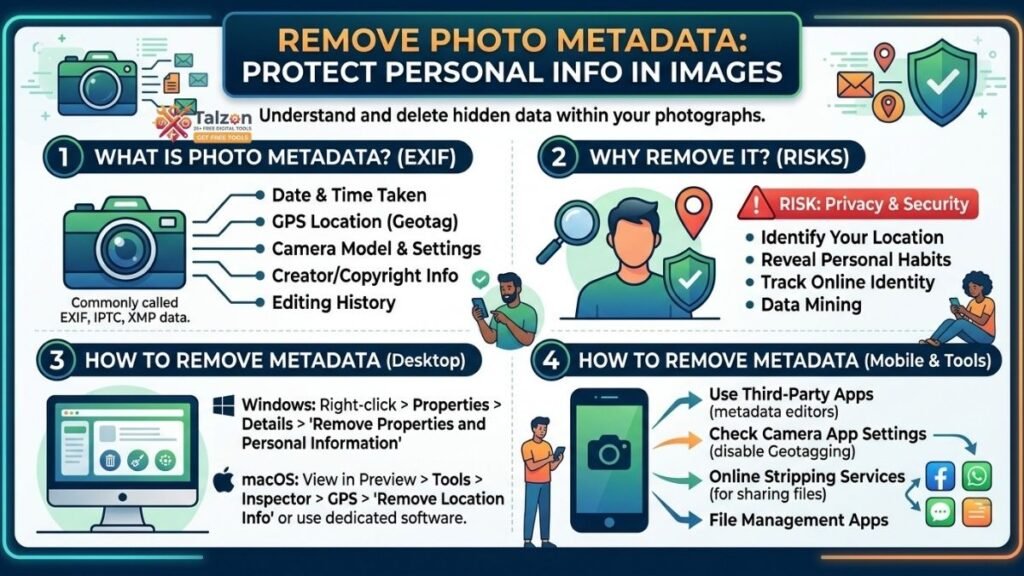
You share a photo of your morning coffee, your kid’s first day at school, or a sunset from your balcony. It feels harmless. But hidden inside that image is a trail of data that can reveal far more than you intended—your exact location, the time you were there, the device you used, and sometimes even your name or editing history. That hidden layer is called metadata, and learning how to remove photo metadata before sharing is one of the simplest, most effective privacy habits you can build today.
This guide walks you through what photo metadata actually is, why it matters for your safety, and exactly how to strip it on every major device and platform. No jargon, no fluff—just clear steps you can use right now.
What Is Photo Metadata (and Why Should You Care)?
Metadata is “data about data.” For photos, it’s the invisible information embedded in the file that describes how, when, and where the image was created. The most common type is EXIF (Exchangeable Image File Format), but there are also IPTC, XMP, and GPS tags that can store additional details.
Typical metadata fields include:
- Date and time the photo was taken
- GPS coordinates (latitude and longitude) of the location
- Device make and model (e.g., iPhone 15 Pro, Samsung Galaxy S24)
- Camera settings like aperture, shutter speed, and ISO
- Software used for editing (e.g., Lightroom, Photoshop)
- Author or copyright info, if added
On the surface, this sounds useful—and it is, for photographers organizing their work or proving ownership. But in the wrong hands, it becomes a privacy leak. A single photo posted from your living room can expose your home address. A series of vacation pics can map your travel patterns. Consistent device info can link “anonymous” posts back to you.
Real Risks of Sharing Photos With Metadata Intact
It’s easy to think, “Who would bother checking my photo’s metadata?” But you don’t need a hacker to extract it. Free online tools, simple apps, or even built-in OS features can read EXIF data in seconds. Here’s what that can enable:
- Location exposure: GPS coordinates can be converted into a street address. That’s risky for photos taken at home, your child’s school, your workplace, or sensitive locations.
- Pattern-of-life tracking: Timestamps across multiple photos can reveal your daily routine—when you’re home, when you travel, where you regularly go.
- Device fingerprinting: A consistent camera serial number or model can tie different accounts or posts to the same person, undermining anonymity.
- Context leakage: Metadata can show editing software, original filenames, or even thumbnail versions of uncropped images, giving away more context than you meant to share.
For most people, the biggest threat isn’t a targeted attack—it’s accidental oversharing that makes stalking, doxxing, or social engineering easier.
When Do Platforms Strip Metadata Automatically?
Some social networks remove most metadata when you upload images. Instagram, Facebook, Twitter/X, and TikTok generally strip EXIF data (including GPS) during upload to protect users and reduce file size.
But not all platforms do this reliably, and not all sharing methods go through those systems. Risks remain when you:
- Send photos via email, WhatsApp, Telegram, Signal, or iMessage (some preserve metadata depending on settings)
- Share images in forums, Discord servers, Slack workspaces, or cloud folders
- Post on niche sites, marketplaces, or community boards that don’t sanitize uploads
- Share original files via Google Drive, Dropbox, or WeTransfer
If you’re unsure whether a platform strips metadata, assume it doesn’t—and clean the photo yourself before sharing.
How to Remove Photo Metadata: Step-by-Step by Device
The good news: removing metadata is quick, free, and built into most devices. Below are practical, human-friendly steps for the most common scenarios. Always work on a copy of your photo, not the original, so you keep a clean master file.
iPhone and iPad (iOS)
iOS gives you two easy options: strip location at share time, or remove it from the photo entirely.
Option 1: Remove location when sharing
- Open the photo in the Photos app.
- Tap the Share button (square with an upward arrow).
- At the top of the share sheet, tap Options.
- Turn Location off. For maximum privacy, also turn All Photos Data off.
- Choose your sharing method (Messages, Mail, etc.) and send.
Option 2: Remove location from the photo permanently
- Open the photo in Photos.
- Swipe up on the photo (or tap the “i” info button) to reveal details and the map.
- Tap Adjust next to the location.
- Tap No Location to strip GPS coordinates.
Note: This removes GPS but may leave other EXIF fields (like camera model). For full metadata removal, use a third-party app or share via a platform that strips EXIF.
Android Phones
Android behavior varies by manufacturer and app, but these methods work broadly.
Via Google Photos (common on many Android devices)
- Open the photo in Google Photos.
- Tap the Share icon.
- Look for an option like Remove location info or Hide location (wording varies).
- If available, toggle it on before sharing.
Via file properties (some devices)
- Open your Files or Gallery app.
- Long-press the photo and tap Details or Info.
- If you see GPS or camera info, look for a Remove or Edit option.
- If your device doesn’t offer this, use a metadata remover app from the Play Store (search “EXIF remover”).
For maximum control, consider a dedicated app like “Scrambled Exif” or “Photo Metadata Remover,” which can strip all EXIF fields before sharing.
Windows PC
Windows makes it easy to view and remove metadata directly in File Explorer.
- Navigate to your photo in File Explorer.
- Right-click the file and choose Properties.
- Go to the Details tab. Here you’ll see fields like date taken, camera model, and GPS.
- At the bottom, click Remove Properties and Personal Information.
- Choose:
- Create a copy with all possible properties removed (safest), or
- Remove the following properties from this file and select specific fields (e.g., GPS, author).
- Click OK and share the cleaned copy.
For batch cleaning multiple photos, place them in one folder and use a free tool like ExifTool (command line) or a GUI metadata remover. A typical ExifTool command is:exiftool -all= -overwrite_original *.jpg
This strips all metadata from every JPG in the folder.
Mac (macOS)
macOS users can remove location info via Preview or use Finder for broader metadata.
Remove GPS via Preview
- Double-click the photo to open it in Preview.
- Go to Tools > Show Inspector (or press
Command + I). - Click the i (More Info) tab, then select the GPS tab.
- Click Remove Location Info at the bottom.
Remove broader metadata (Finder + export)
- Open the photo in Preview.
- Go to File > Export.
- In the export dialog, uncheck options that preserve metadata (wording varies by macOS version).
- Save as a new file and share that version.
For complete control, use a free app like “ImageOptim” or an online EXIF remover (see next section).
Online Tools (Works on Any Device)
If you prefer not to install anything, browser-based tools can strip metadata quickly. These are ideal for one-off photos or when you’re on a shared device.
- Visit a trusted EXIF/metadata remover site (search “remove photo metadata online”).
- Drag and drop your photo(s) into the browser window.
- Review the detected fields (GPS rows are often highlighted).
- Click Strip & Download or Remove Metadata.
- Download the cleaned copy and verify by re-uploading it to an EXIF viewer.
Privacy tip: Choose tools that process images in your browser (client-side) rather than uploading them to a server. Many modern tools do this, but check their privacy policy if you’re handling sensitive images.
Verify That Metadata Is Gone
Don’t assume the first attempt worked. After cleaning, verify the photo is truly stripped.
- On Windows: Right-click the cleaned file > Properties > Details. GPS, camera model, and date fields should be blank or minimal.
- On Mac: Open in Preview > Tools > Show Inspector > i tab. GPS and detailed camera info should be absent.
- Online: Upload the cleaned photo to a free EXIF viewer. If it shows “No EXIF data” or only basic fields, you’re good.
If sensitive fields still appear, repeat the removal process or try a different tool.
Best Practices for Sharing Photos Safely
Removing metadata is powerful, but it’s one layer of a broader privacy strategy. Combine it with these habits:
- Share copies, not originals: Keep your master files with full metadata for your records; share only cleaned copies.
- Disable location tagging in your camera: On iPhone, go to Settings > Privacy & Security > Location Services > Camera and set it to Never. On Android, open your camera app’s settings and turn off Save location or Geotagging.
- Review before posting: Scroll through recent photos and check for backgrounds that reveal addresses, license plates, school logos, or workplace details. Crop or blur if needed.
- Use platforms that strip EXIF: When in doubt, post via major social networks that sanitize uploads, then share the link elsewhere if needed.
- Educate family and friends: Kids, partners, and group chats often share photos without thinking. A quick reminder to “remove photo metadata before sharing” can prevent accidental leaks.
Common Myths About Photo Metadata
Let’s clear up a few misconceptions that leave people exposed.
Myth: “Social media always removes metadata, so I’m safe.”
Reality: Many platforms do strip EXIF, but not all. Messaging apps, email attachments, forums, and cloud links often preserve it. Never assume—verify or clean proactively.
Myth: “Cropping or filtering removes metadata.”
Reality: Basic edits often preserve EXIF. Some apps even add new metadata (like software used). Always strip explicitly.
Myth: “Only photographers need to worry about metadata.”
Reality: Anyone with a smartphone creates metadata. The risk isn’t about artistry—it’s about location, timing, and device info that can be misused.
Make “Remove Photo Metadata” a Habit
Privacy isn’t about perfection; it’s about reducing unnecessary risk. Taking 10 seconds to remove photo metadata before sharing is like locking your door when you leave home—it’s a small action that prevents big problems.
Start today: pick one device you use most, follow the steps above, and test it with a recent photo. Once it feels routine, extend it to other devices and share this guide with someone who frequently posts family pics, travel updates, or event photos.
Your images tell stories. You get to decide how much of the behind-the-scenes data comes along for the ride.