
Step-by-Step Guide to Merging PDFs for Work | PDF Merging
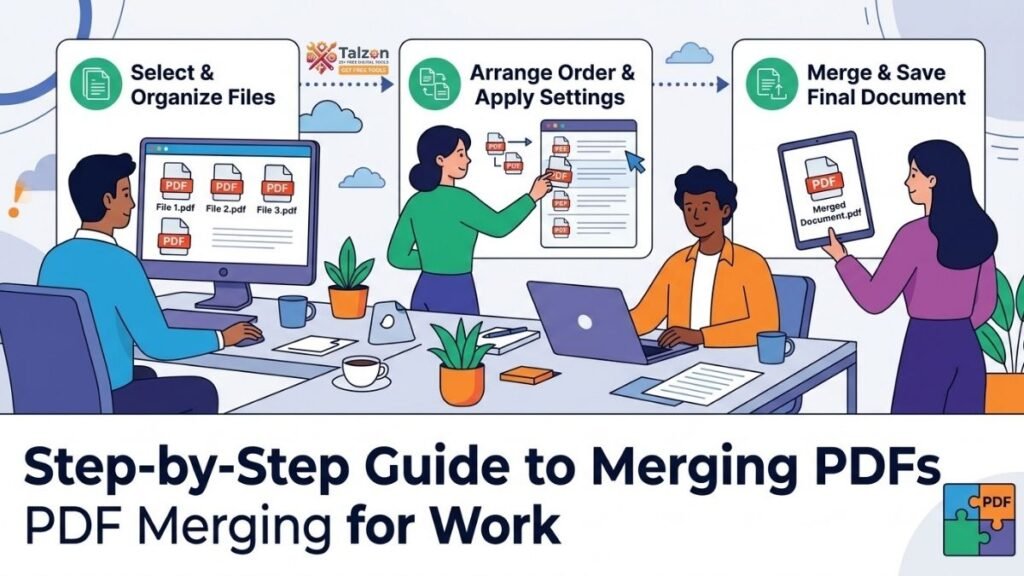
In today’s fast-paced work environment, managing documents efficiently can make or break your productivity. One skill that’s increasingly essential? PDF merging. Whether you’re compiling reports, bundling contracts, or assembling client presentations, knowing how to merge PDFs quickly and securely saves time, reduces clutter, and keeps your workflow smooth.
This step-by-step guide walks you through everything you need to know about PDF merging—from why it matters to which tools to use and how to do it like a pro. By the end, you’ll be combining documents with confidence and ease.
Why PDF Merging Matters in the Workplace
Before diving into the “how,” let’s talk about the “why.” PDF merging isn’t just a nice-to-have—it’s a productivity booster with real business impact.
- Saves Time Searching for Files: Employees spend an average of 2.5 hours each week just looking for documents. Merging related PDFs into one file cuts down search time dramatically.
- Streamlines Collaboration: When everyone works from a single, consolidated document, there’s less confusion and fewer version control issues.
- Improves Document Security: Combining sensitive files into one PDF makes it easier to apply passwords, permissions, and encryption consistently.
- Reduces Email Clutter: Instead of attaching five separate files, send one merged PDF. It’s cleaner for you and easier for recipients to manage.
In short, PDF merging helps teams work smarter, not harder.
Tools You Can Use for PDF Merging
There’s no shortage of tools for merging PDFs, but not all are created equal. Here are some of the best options available in 2026, categorized by use case.
Browser-Based (No Installation Required)
These tools run directly in your web browser—perfect for quick tasks or when you’re on a shared computer.
- iLovePDF: Handles repeated merges with no daily task limit and supports files up to 100MB.
- PDF24 Tools: Completely free, no signup required, and processes files locally in your browser for privacy.
- Pickrack Merge PDF: Unlimited merges, browser-side processing (files never upload), and preserves bookmarks.
- Smallpdf: User-friendly interface with drag-and-drop reordering.
Desktop Software (For Heavy-Duty Use)
If you’re merging large batches regularly, desktop apps offer more control and efficiency.
- PDFsam Basic: Open-source, free, and ideal for batch processing 100+ files.
- Adobe Acrobat Pro: The industry standard, with advanced features like OCR, form editing, and batch merging (paid subscription).
Built-In OS Options
- macOS Preview: Select multiple PDFs, open in Preview, drag pages into order, and export as a single file.
- Windows 10/11: No native merger, but you can use PowerToys or third-party apps like PDF24.
Pro Tip: For sensitive documents, choose tools that process files locally (in your browser or on your desktop) to avoid uploading confidential data to third-party servers.
Step-by-Step: How to Merge PDFs for Work
Ready to get hands-on? Here’s a universal workflow that works with most PDF merging tools.
Step 1: Gather and Organize Your Files
Before you start merging, make sure you have all the PDFs you need in one folder. Name them clearly (e.g., “01_Intro.pdf,” “02_Data.pdf,” “03_Conclusion.pdf”) so you know the intended order.
Why this matters: Reordering after merging is possible but time-consuming. Getting it right the first time saves hassle.
Step 2: Choose Your PDF Merger
Pick a tool based on your needs:
- Quick, one-off merge: Use a browser-based tool like iLovePDF or PDF24.
- Frequent, large batches: Go with PDFsam Basic or Adobe Acrobat.
- Maximum privacy: Choose a browser-local tool like Pickrack or PDF24.
Step 3: Upload Your PDFs
Most tools have a big “Upload” or “Select Files” button. Click it, then navigate to your folder and select all the PDFs you want to merge.
Alternative: Drag and drop files directly into the tool’s upload zone.
Step 4: Arrange Files in the Correct Order
Once uploaded, you’ll see thumbnails or file names. Drag them into the sequence you want. Double-check the order before proceeding.
Pro Tip: If you only need specific pages from a PDF, some tools let you specify page ranges (e.g., “Pages 1–3 of File A, Pages 5–7 of File B”).
Step 5: Merge the Files
Click the “Merge,” “Combine,” or “Create PDF” button. The tool will process your files—this usually takes less than 30 seconds for standard documents.
Step 6: Download and Review
Once the merge is complete, download the new PDF. Open it in your preferred reader (Adobe, Chrome, Preview, etc.) and scroll through to ensure:
- All pages are present
- The order is correct
- Formatting (fonts, images, tables) looks intact
If something’s off: Most tools let you go back and re-merge with adjustments.
Step 7: Compress (Optional)
Merged PDFs can be large. If you need to email the file or upload it somewhere with size limits, run it through a PDF compressor.
- Pickrack Compress PDF: Reduces file size by 30–70% without noticeable quality loss.
- iLovePDF Compress: Another solid free option.
Best Practices for PDF Merging at Work
To get the most out of PDF merging, follow these pro tips:
1. Test with Small Files First
Especially when dealing with sensitive or complex documents, do a trial merge with two small files. This verifies the output before you commit to a large batch.
2. Watch for Signed or Form-Enabled PDFs
If your PDFs contain electronic signatures or fillable forms, merging can invalidate signatures or break form functionality. Whenever possible, merge before signing or converting forms to static content.
3. Preserve Bookmarks for Navigation
If your source PDFs have bookmarks (clickable table of contents), choose a merger that preserves them. This makes navigating long, combined documents much easier.
4. Standardize Page Sizes
Ensure all documents use the same page size (e.g., Letter or A4) for a consistent look. Mismatched sizes can create awkward jumps when scrolling or printing.
5. Use Descriptive File Names
After merging, save your file with a clear name like “Q3_Marketing_Report_Final.pdf” instead of “merged_document.pdf.” This helps with version control and searchability.
Common Mistakes to Avoid
Even experienced users slip up sometimes. Here’s what to watch out for:
- Merging in the Wrong Order: Always double-check before hitting “Merge.” Reordering afterward is possible but tedious.
- Ignoring File Size Limits: Some free tools cap uploads at 50–100MB. Check limits before starting.
- Overlooking Privacy Settings: Avoid tools that upload files to servers if you’re handling confidential data.
- Skipping the Review Step: Never send a merged PDF without scrolling through it first. Missing pages or formatting glitches happen more often than you’d think.
Advanced PDF Merging Workflows
Once you’ve mastered the basics, consider these advanced techniques to supercharge your workflow:
Batch Merging with Automation
Tools like PDFsam Basic and Adobe Acrobat support batch processing. You can set up rules (e.g., “Merge all PDFs in Folder A into one file”) and let the software do the work.
Integrating with Document Management Systems (DMS)
Many DMS platforms (like SharePoint, Google Drive, or specialized legal/medical systems) support PDF merging as part of their workflow. Integrating your merger with a DMS can boost efficiency by up to 50%.
Combining PDFs with Other File Types
Some advanced tools let you merge PDFs with Word docs, Excel sheets, or images into a single PDF. This is handy for creating comprehensive reports or portfolios.
Security Considerations for PDF Merging
When merging work documents, security should always be top of mind.
- Use Local Processing Tools: Browser-based tools that process files locally (like PDF24 or Pickrack) don’t upload your data to external servers.
- Apply Passwords and Permissions: After merging, use your PDF editor to add password protection or restrict printing/editing if the document contains sensitive info.
- Avoid Public Computers for Sensitive Merges: If you’re handling confidential files, stick to your own device and trusted software.
How PDF Merging Boosts Team Productivity
The benefits of PDF merging extend beyond individual efficiency. Teams that adopt smart document management practices see measurable gains:
- Faster Retrieval Times: Centralized, merged documents reduce retrieval time from an average of 18 minutes to just 2 minutes per document.
- Improved Collaboration: A single source of truth minimizes confusion during meetings and makes feedback tracking easier.
- Reduced Errors: Fewer files mean fewer chances for version mix-ups or missing attachments.
In one real-world example, a marketing team saved an estimated 30 minutes per project simply by merging reports, presentations, and contracts into single PDFs.
Troubleshooting Common PDF Merging Issues
Even with the best tools, things can go wrong. Here’s how to fix common problems:
Issue: Merged PDF Won’t Open
- Solution: Try opening it in a different reader (e.g., Chrome instead of Adobe). If it still fails, re-merge using a different tool.
Issue: Formatting Looks Off
- Solution: Ensure all source PDFs use the same fonts and page sizes. If issues persist, convert problematic files to PDF/A (archival format) before merging.
Issue: File Size Too Large
- Solution: Use a PDF compressor after merging. Most tools offer 30–70% reduction without visible quality loss.
Issue: Signatures or Forms Break After Merging
- Solution: Merge before applying signatures or converting forms to static content. If already signed, you may need to re-sign the merged document.
The Future of PDF Merging
As AI and automation continue to evolve, PDF merging is getting smarter. Expect to see:
- AI-Powered Organization: Tools that automatically sort and merge files based on content or metadata.
- Seamless Cloud Integration: One-click merging directly from Google Drive, Dropbox, or OneDrive.
- Enhanced Security: Built-in encryption and compliance features for industries like healthcare and finance.
For now, mastering the basics of PDF merging gives you a solid foundation to adapt to whatever comes next.
Final Thoughts: Make PDF Merging Part of Your Workflow
PDF merging isn’t just a technical skill—it’s a productivity hack that pays dividends every day. Whether you’re a solo professional or part of a large team, taking a few minutes to learn the right tools and techniques can save hours down the road.
Start small: pick one tool, try merging two files, and build from there. Before long, you’ll wonder how you ever worked without it.