
How to Generate PDF Invoices Quickly and Securely
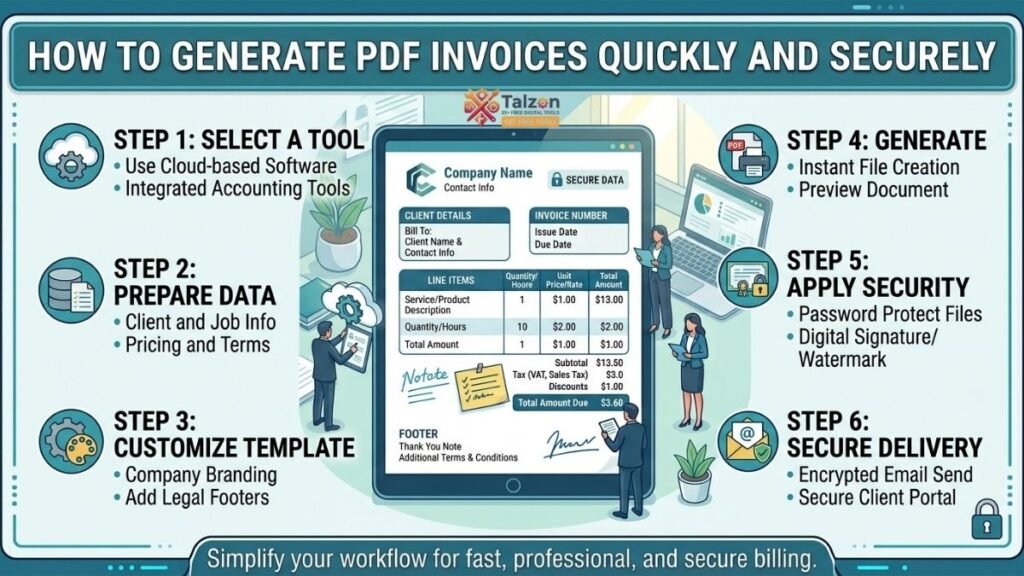
If you run a small business, work as a freelancer, or manage billing for a team, you know how important it is to send invoices on time. A clear, well-formatted invoice helps clients understand what they are paying for and makes it easier for them to process payment.
Today, most businesses send invoices as digital files rather than printed paper. The most common format is a PDF invoice. PDFs are easy to create, simple to share by email, and less likely to be accidentally edited than Word documents or spreadsheets.
However, generating PDF invoices quickly and securely requires more than just clicking “Save as PDF.” You also need to protect sensitive information, maintain accurate records, and choose tools that fit your workflow.
This guide explains how to create professional PDF invoices in minutes, how to keep your financial data safe, and how to automate your invoicing process so you can focus on your work instead of chasing payments.
What Is a PDF Invoice?
A PDF invoice is an invoice saved in Portable Document Format (PDF). This format preserves the layout, fonts, and structure of your document, so it looks the same on every device.
When you send a PDF invoice, your client can open it on a computer, tablet, or phone without needing the software you used to create it. The document remains fixed, which reduces the risk of accidental changes to amounts, dates, or descriptions.
PDF invoices are widely accepted by accounting departments, payment platforms, and tax authorities. They are also easy to store, search, and archive for future reference.
Why Businesses Prefer PDF Invoices
PDF invoices have become the standard for digital billing because they balance convenience with reliability.
Key benefits include:
- Consistent formatting: The layout does not shift when opened on different devices.
- Professional appearance: PDFs look clean and polished compared to screenshots or plain text.
- Easy sharing: You can attach a PDF to an email, upload it to a portal, or send it via messaging apps.
- Reduced editing risk: Clients cannot easily change numbers or descriptions.
- Simple archiving: PDFs are easy to organize in folders or cloud storage.
- Compatibility: Most accounting and tax systems accept PDF invoices as supporting documents.
For freelancers and small businesses, a PDF invoice also signals professionalism. It shows that you take your business seriously and respect your client’s need for clear documentation.
Step 1: Choose the Right Invoicing Method
The first step in generating a PDF invoice quickly is deciding how you will create it. You have several options, each with different advantages.
Spreadsheet or Word Processor Templates
If you send only a few invoices each month, a simple template in Google Sheets, Excel, Word, or Google Docs may be enough. You fill in the details, then export or print the document as a PDF.
This method is low-cost and flexible, but it requires manual work for each invoice. You must also manage your own numbering, calculations, and record-keeping.
Online Invoicing Tools
Dedicated invoicing platforms allow you to create, send, and track invoices from a web browser. Many tools offer free plans for small businesses and freelancers.
These platforms typically include:
- Customizable invoice templates.
- Automatic calculations.
- Unique invoice numbers.
- Payment tracking.
- Email delivery.
- PDF export options.
Online tools save time and reduce errors, especially as your volume of invoices grows.
Accounting Software
If you already use accounting software, it likely includes invoicing features. You can generate a PDF invoice directly from your financial records, ensuring that income, taxes, and expenses stay aligned.
This option is ideal if you want your invoices to integrate with bookkeeping, tax reporting, and financial statements.
Payment Platforms with Invoicing
Some payment processors allow you to create and send invoices that include a payment link. When the client pays, the system can automatically generate a PDF receipt or invoice.
This approach is convenient if you want to combine billing and payment collection in one step.
Step 2: Gather Essential Invoice Information
Before generating a PDF invoice, collect all the information you need. Missing details can delay payment or create confusion.
A professional invoice should include:
- Your business name and contact information.
- Your client’s name and billing details.
- A unique invoice number.
- The invoice date.
- The payment due date.
- A clear description of products or services.
- Quantities, rates, and subtotals.
- Taxes, discounts, and additional fees.
- The total amount due.
- Currency information.
- Payment instructions and accepted methods.
- Payment terms and late payment policy.
- Any relevant project or purchase order references.
Keep this information in a consistent format so you can reuse it for future invoices. Many tools allow you to save client profiles and invoice templates to speed up the process.
Step 3: Use a Clean and Readable Template
Your invoice does not need to be visually elaborate, but it should be easy to read. A clean template helps clients find important details quickly.
Tips for an effective invoice layout:
- Place your logo (if you have one) and business information at the top.
- Clearly label the document as “Invoice.”
- Show the invoice number, invoice date, and due date near the top.
- Use a simple table for line items and totals.
- Highlight the total amount due.
- Keep fonts and colors consistent with your brand.
- Avoid cluttered designs or unnecessary graphics.
Most invoicing tools provide ready-made templates that you can customize. Choose a design that looks professional and works well when printed in black and white.
Step 4: Generate the PDF Invoice Quickly
Once your template and information are ready, generating the PDF invoice should take only a few minutes.
Using a Template
If you use a spreadsheet or document template:
- Open your template.
- Enter the client’s details and invoice number.
- Add line items, quantities, and rates.
- Check all calculations.
- Add payment instructions and terms.
- Export or print the document as a PDF.
- Save a copy in your records.
Use a clear file name, such as “Invoice-2026-015-ClientName.pdf,” to make it easy to locate later.
Using an Invoicing Platform
If you use an online invoicing tool:
- Log in to your account.
- Click “Create Invoice” or a similar option.
- Select the client or enter their details.
- Add line items and adjust amounts if needed.
- Review the invoice for accuracy.
- Click “Send” or “Download as PDF.”
- Save a copy if you download it manually.
Many platforms allow you to send the invoice directly by email, which saves an extra step.
Using Accounting Software
In accounting software, you usually:
- Navigate to the invoicing or sales section.
- Create a new invoice.
- Select the customer and add items or services.
- Review taxes and totals.
- Save and send the invoice.
- Export or print as PDF if required.
Because the data is already in your accounting system, this method reduces duplicate entry and helps keep your books accurate.
Step 5: Secure Your PDF Invoice and Client Data
Speed is important, but security is equally critical. Your invoices contain sensitive financial information, including names, addresses, amounts, and sometimes bank details.
Follow these practices to keep your PDF invoices secure:
Use Trusted Tools
Choose reputable invoicing platforms, accounting software, or payment processors. Look for providers that use encryption, secure logins, and regular security updates.
Avoid using unknown or unverified tools that may store your data insecurely.
Protect Your Devices
Secure the devices you use to create and send invoices. Use strong passwords or biometric locks, keep your operating system updated, and install trusted security software.
If you store invoices on your computer or cloud storage, use strong account passwords and enable two-factor authentication.
Limit Access to Sensitive Information
Only share your invoice with people who need it. When emailing a PDF invoice, send it to the correct billing contact rather than a general inbox whenever possible.
Avoid including unnecessary personal information, such as full bank account numbers, in the body of an email. If bank details are required, include them only in the PDF itself or through a secure payment portal.
Use Password Protection When Needed
For highly sensitive invoices, some tools allow you to password-protect PDF files. This adds an extra layer of security, especially when sharing financial documents with new clients or external partners.
However, password protection can create friction for the recipient. Use it only when necessary and share the password through a separate channel.
Keep Organized Records
Store your invoices in a structured system, such as dated folders or a dedicated invoicing directory. Regularly back up your records to prevent data loss.
Organized records make it easier to respond to client questions, prepare taxes, and track unpaid invoices.
Step 6: Automate Your Invoicing Process
As your business grows, manually creating each PDF invoice can become time-consuming. Automation helps you generate invoices faster and reduces the chance of human error.
Common automation features include:
- Recurring invoices: Automatically generate and send invoices for subscription services or ongoing projects.
- Payment reminders: Send automatic emails when an invoice is approaching its due date or is overdue.
- Client templates: Save client details and default line items to speed up future invoices.
- Payment links: Include clickable payment buttons in your PDF or email.
- Status tracking: See which invoices are paid, unpaid, or overdue at a glance.
Many invoicing platforms and accounting tools offer these features even on lower-tier plans. Automation allows you to maintain consistent billing without spending hours on administrative tasks.
Step 7: Send and Follow Up on Your PDF Invoice
Once your PDF invoice is ready, send it promptly. Delaying the invoice can delay payment.
When sending by email:
- Use a clear subject line, such as “Invoice INV-2026-018 from [Your Business].”
- Attach the PDF invoice.
- Include a brief, polite message thanking the client and stating the due date.
- Provide your contact information for billing questions.
Example email:
“Hi Maria,
Thank you for working with me on the website project. Please find invoice INV-2026-018 attached. The total amount due is USD 950, with payment requested by September 15. Let me know if you have any questions.
Best,
[Your Name]”
If payment is late, send a friendly reminder referencing the invoice number and due date. Most clients appreciate a polite nudge rather than a confrontational message.
Common Mistakes to Avoid When Generating PDF Invoices
Even with the right tools, small errors can cause big problems. Watch out for these common mistakes:
- Sending invoices without a unique number.
- Forgetting to include a due date.
- Using vague descriptions like “Services rendered.”
- Miscalculating totals or taxes.
- Sending to the wrong email address.
- Using outdated payment instructions.
- Failing to save a copy of the PDF invoice.
- Mixing personal and business expenses.
- Not following up on overdue invoices.
- Using unsecured tools that risk data leaks.
Create a simple checklist and review each invoice before sending it. A few seconds of proofreading can prevent days of back-and-forth communication.
Final Checklist for Quick and Secure PDF Invoices
Before you send your next PDF invoice, confirm that you have:
- Chosen a reliable invoicing method.
- Collected accurate client and business details.
- Used a clean, professional template.
- Included all essential invoice elements.
- Checked all calculations and totals.
- Exported the document as a PDF.
- Saved a secure copy in your records.
- Sent the invoice to the correct contact.
- Included clear payment instructions.
- Planned follow-up reminders for unpaid invoices.
Generating a PDF invoice quickly and securely is not about using the most expensive software. It is about choosing the right tools, following a consistent process, and protecting your financial data. With a reliable system in place, you can send professional invoices in minutes and spend more time growing your business.